How to Use ChatGPT: Complete Beginner Guide for 2026
Most people use ChatGPT like a basic search engine. They type a simple question, read the generic answer, and close the tab. That works for simple tasks. But it leaves most of the machine’s actual capability completely untouched.
Learning how to use ChatGPT effectively means changing how you communicate. The features that actually save time are sitting right there on every paid plan. Almost nobody sets them up properly.
The platform boasts 900 million weekly active users as of February 2026. Setting up your profile takes under three minutes. Getting your first useful result takes about the same time. This guide covers everything from your very first login to the settings most users never find.
How to Create a ChatGPT Account
Go directly to the official website at chatgpt.com. Click the sign up button prominently displayed on the homepage. You have multiple options to register.
You can use an existing Google, Microsoft, or Apple account for instant access. An email signup takes under sixty seconds total. You simply enter your email address and create a secure password.
Check your inbox for a verification link immediately. Click that link to activate your profile. A short onboarding screen pops up right after this verification step.
Data Management
Just click right through those welcome screens. Your free account is ready to use immediately. You absolutely do not need a credit card to start testing things out.
Mobile users should download the official app on iOS or Android. The exact same account works perfectly across every device you own. Your conversation history syncs automatically across devices without any extra effort.
The ChatGPT Interface Explained
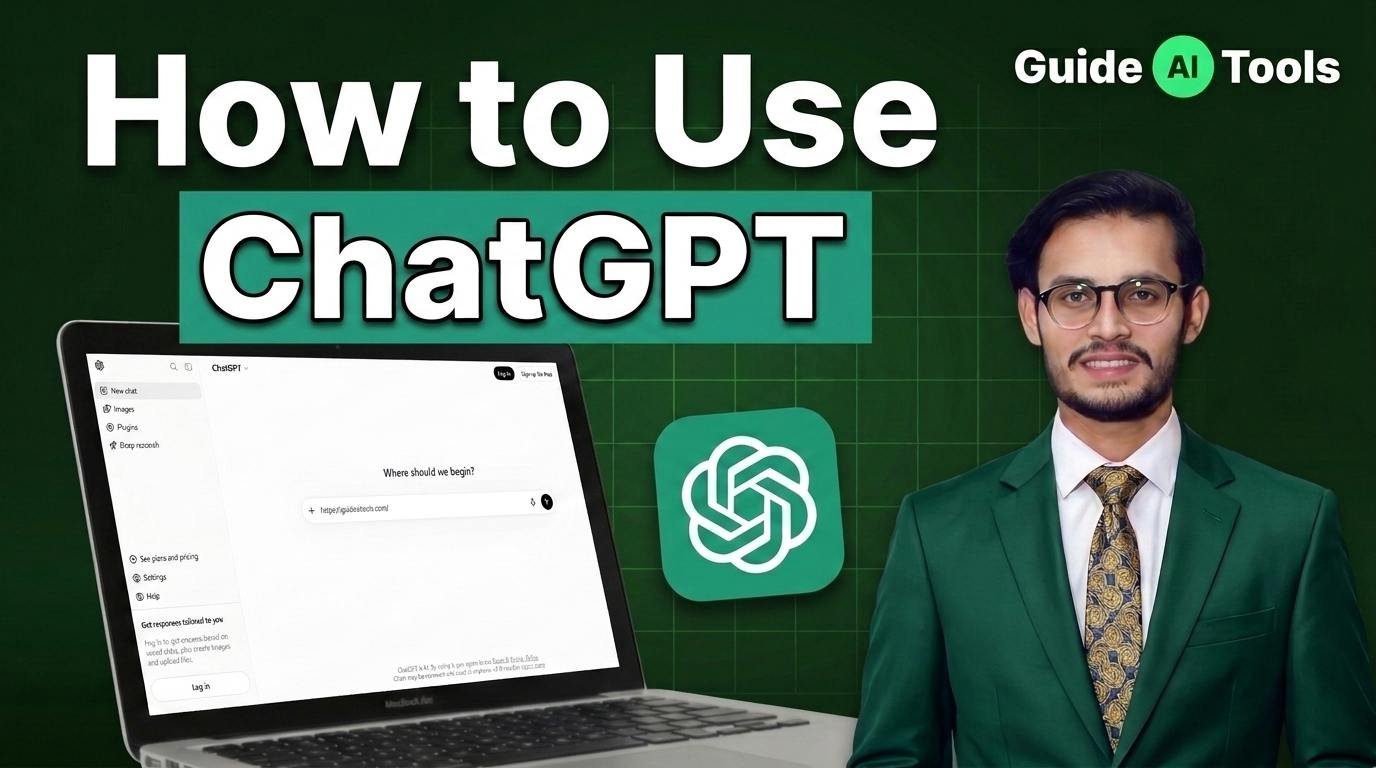
The layout is incredibly straightforward and minimal. The left sidebar holds your chat history and the new chat button. It also houses your dedicated project folders.
The main center area is your conversation window where the text appears. Look at the bottom of the screen to find the text input box. This area includes file upload buttons, a voice toggle, and an image capture option.
Your account settings live in the top right corner of the screen. The model selector sits at the top left. Free users are locked to the default model while paying users can select more capable versions.
You will spend most of your time typing in the bottom box. The interface gets out of your way on purpose. It wants you to focus entirely on the conversation.
Your First ChatGPT Prompt
Type anything into the bottom box and press Enter. That text is a prompt. The machine processes your words and responds in seconds.
The entire conversation is threaded together naturally. Keep talking in that exact same chat to refine your results. Do not start a new chat for follow-up questions because the context carries through perfectly.
Let us look at a real example of bad versus good communication. To learn more about prompting check our complete guide.
Weak prompt:
Write an email.
Strong prompt:
Write a short, professional email to my client explaining that the project delivery will be delayed by 3 days due to technical issues. Apologetic but confident tone. Under 150 words.
The contrast shows up instantly. The strong prompt gives the machine clear boundaries and explicit expectations to follow.
Follow these simple rules whenever you write a prompt:
- Be specific about your goal and avoid general statements.
- Define the exact structure like a table, bulleted list, or paragraph.
- Set the tone using words like formal, casual, direct, or persuasive.
- Give a strict word count or sentence limit to avoid fluff.
- Reply directly in the chat to adjust mistakes instead of starting over.
Which ChatGPT Plan Should You Use?
Picking the right tier depends entirely on how often you use the platform. Check the OpenAI official pricing page to confirm current plan details.
Here is the breakdown of available plans as of mid-2026.
| Plan | Monthly Cost | Primary Model | Key Features Included |
| Free | $0 | GPT-5.5 Instant | ~10 messages per 5 hours, file uploads, ads |
| Go | $8/month | GPT-5.5 Instant | Higher message limits, includes ads, no advanced tools |
| Plus | $20/month | GPT-5.6 Sol | Deep Research, Sora, Codex, Agent Mode, ad-free |
| Pro Codex | $100/month | GPT-5.6 Sol | 5x Plus limits, elevated coding limits |
| Pro Max | $200/month | GPT-5.6 Sol | 20x Plus limits, 250 Deep Research runs |
| Business | $20–25/user | GPT-5.6 Sol | Workspace controls, SOC 2 compliance, SAML SSO |
| Enterprise | Custom | GPT-5.6 Sol | Dedicated deployment and custom security |
The $8 per month Go plan looks like a smart middle ground for budget users. In reality, it is a trap. It runs the exact same GPT-5.5 Instant model as the Free version and still displays ads in certain regions. It completely fails to give you access to advanced reasoning models or specialized tools.
Honestly, most beginners get this choice wrong. Skip the Go plan entirely and stay on the Free version while learning the basics. Upgrade straight to the $20 per month Plus plan once you start relying on the tool daily for professional work.
The Plus plan unlocks GPT-5.6 Sol, which handles complex logic and multi-step tasks much better. It also removes all ads and gives you access to autonomous research tools that save dozens of hours every month.
5 ChatGPT Features Most Beginners Miss
Most users log in, type a question, and leave. They miss the built-in productivity settings that transform how the platform functions.
Custom Instructions
Navigate to Settings, then click Personalization, and select Custom Instructions. This setting lets you establish a permanent background context for every new chat you create.
You can tell the AI your specific job role, favorite response formats, and writing style preferences once. Every single new chat respects these rules automatically without requiring you to retype your preferences every time.
Memory
Find this control under Settings, then Personalization, and Manage Memory. The AI automatically remembers details you share during everyday conversations across different sessions.
It stores facts like your favorite coding languages, company name, or writing preferences automatically. You can review, edit, or delete stored memories at any time. Tell the AI mid-chat to remember that you hate passive voice and it updates your profile instantly.
Projects
Look at the left sidebar menu and click the New Project button. This feature creates a dedicated folder equipped with its own custom instructions and document repository.
You can create a project named Content Strategy and upload your company brand guidelines into it. Every single chat opened inside that project reads those uploaded files automatically. It isolates different clients or work tasks into neat workspaces.
Deep Research
Open any chat box and click the small plus icon to locate the Deep Research tool. This function deploys an autonomous research workflow that searches dozens of live web sources simultaneously.
It synthesizes findings into an extensive report complete with verified web citations. Plus subscribers get ten deep research runs every month. The process takes five to ten minutes to complete but delivers thorough research reports that would take a human hours to compile manually.
Voice Mode
Click the small microphone icon located inside the mobile or desktop chat field on paid plans. This starts a fluid spoken conversation powered by advanced real-time voice models.
You can talk naturally, interrupt the AI mid-sentence, or ask it to adjust its tone on the fly. It feels like speaking to an intelligent human assistant. It works exceptionally well for practicing job interviews, brainstorming article topics during your morning commute, or learning a foreign language hands-free.
Real Use Cases by Who You Are
The platform adapts to whatever job you give it. Here is how different professionals use it to speed up their everyday workloads.
Students use the tool to break down complex textbook concepts into plain English. You can paste a syllabus to build a structured study schedule or request customized practice quizzes before an exam. Never paste AI outputs directly into academic assignments because plagiarism checkers catch it easily. Treat the platform as a private tutor rather than a ghostwriter.
Writers and content creators use the system to build structured outlines for long articles. You can rewrite weak paragraphs, brainstorm fifty headline ideas in ten seconds, or adjust text to fit a specific reading level. Setting up your Custom Instructions with your target tone ensures drafts match your personal style from the very first attempt.
Marketers generate short ad variations, email subject lines, and social media captions in seconds. You can upload customer feedback spreadsheets to analyze recurring complaints or build monthly content calendars. Many growth teams pair the platform with specialized writing tools like Copy.ai to scale their content production across multiple channels.
Developers use the interface to write, review, and debug code across dozens of programming languages. You can paste confusing terminal error messages to get instant plain English explanations and fixed code snippets. Most professional programmers combine this chat setup with inline code generators like GitHub Copilot inside their primary code editor.
Managers and business professionals summarize forty-page PDF reports into brief executive summaries. You can draft structured meeting agendas, write objective performance review notes, or draft difficult customer support emails. Running a Deep Research session on a competitor before an important meeting gives you a massive information advantage without spending all day researching.
What ChatGPT is NOT Good For
Understanding where the technology fails protects you from making embarrassing mistakes. The platform is powerful, but it is not infallible.
Do not rely on the platform for medical diagnoses or emergency treatment decisions. It can help you decode confusing medical jargon on a lab report, but it cannot evaluate physical symptoms safely. Always consult a licensed healthcare professional for medical issues.
Avoid using output text as formal legal counsel. The AI explains general legal theories well, but it frequently hallucinates specific local statutory details or judicial precedents. Consult a qualified lawyer when reviewing contracts or navigating active legal disputes.
Do not trust the system for real-time breaking news without web search turned on explicitly. Language models tend to hallucinate details when reporting on events that happened within the last few hours. Always verify factual claims against primary news sources before sharing information publicly.
It is not a substitute for human therapy or personal relationships. The system offers helpful reflective questions, but it lacks genuine empathy and human judgment. Seek professional human counseling when dealing with serious mental health struggles.
Be careful with high-stakes financial calculations. The AI handles basic arithmetic well, but it can make simple calculation errors on complex financial statements. Double-check all math manually before making major investment decisions based on AI outputs.
FAQs
Is ChatGPT free to use?
Yes. The platform provides a permanent free tier that grants access to the GPT-5.5 Instant model. You get basic messaging limits and standard features without entering a credit card. The free version handles basic writing, editing, and question-answering tasks effortlessly.
What is the difference between ChatGPT Free and Plus?
The Free plan limits daily message volume and relies on the lighter GPT-5.5 Instant model. The $20 per month Plus subscription upgrades you to the powerful GPT-5.6 Sol model. Plus also unlocks Deep Research, voice capabilities, custom project workspaces, image generation, and completely ad-free usage.
Is ChatGPT safe to use?
Yes, for standard daily tasks. Do not enter sensitive corporate secrets, financial account details, passwords, or personal identification information into the chat window. Free tier data may be used to train future models, but you can turn off data training under Settings and Data Controls.
Can I use ChatGPT on my phone?
Yes. Official apps exist for both iOS and Android platforms. Your chat history, custom instructions, saved memories, and subscription benefits sync automatically across web, mobile, and desktop applications.
How do I get better answers from ChatGPT?
Provide clear context, assign a specific role, define your required format, and set strict output rules. Avoid vague one-word prompts. If the initial answer misses the mark, reply directly in the chat thread and ask the AI to revise specific sections.
The Next Step in Your AI Setup
Getting real value out of AI requires very little manual effort. You do not need technical skills or a computer science background to get incredible results.
Take five minutes right now to configure your Custom Instructions under your profile settings. Start using structured prompts that define a clear role, context, task, and format. You will see an immediate jump in response quality.
When you are ready to expand your toolkit further, browse our complete list of AI productivity tools to find complementary software. The real productivity gains happen when you build a streamlined system that fits your exact daily workflow.

Related Blog Posts