How to Use Google Gemini in 2026: Beginner’s Guide
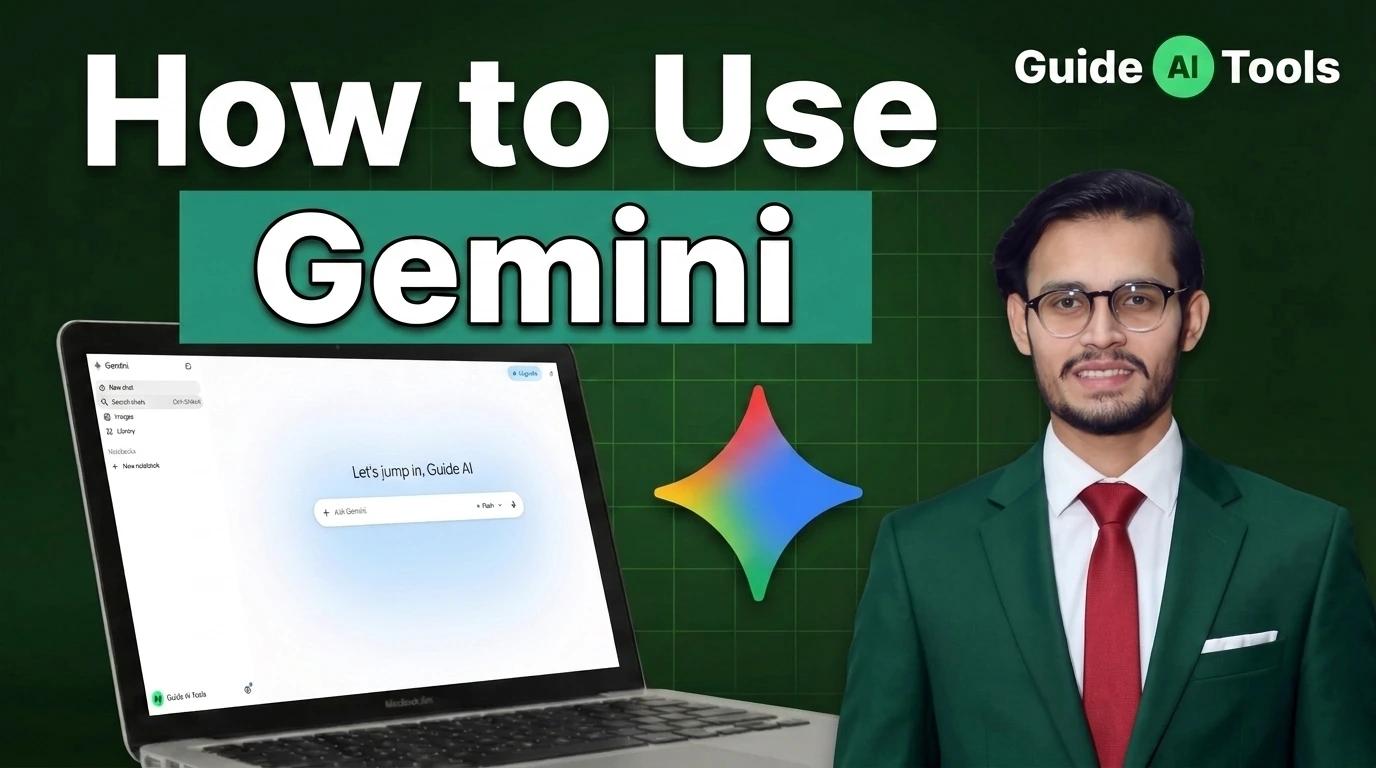
Google Gemini is easy to start using, but getting useful results requires more than asking random questions. Open Gemini, enter a clear prompt, add files or context when needed, and choose the right feature for your task. You can use it for writing, research, coding, document analysis, brainstorming, and productivity work.
Many beginners treat Gemini like a simple search box.
That is where they miss most of its value.
Gemini can help you research a topic, analyze documents, create drafts, build study materials, review code, and organize ideas. The difference comes from knowing when to use normal chat, Deep Research, Canvas, Gems, or file uploads.
In practical use, the quality of your instructions often matters more than the number of features available.
This guide explains how to use Google Gemini step by step, with practical examples for students, creators, marketers, developers, and everyday users.
What Is Google Gemini?
Google Gemini is an AI assistant developed by Google that helps users create content, answer questions, analyze information, work with files, and complete different digital tasks through natural conversations.
Gemini has moved beyond basic chatbot functions. Users can now work with text, images, documents, spreadsheets, code, research material, and connected Google services depending on availability. You can check the latest Gemini features and availability through the official Google Gemini Help resources.
You can use Gemini for:
- Writing and editing content
- Summarizing documents
- Explaining complex topics
- Creating images and ideas
- Reviewing code
- Researching topics
- Preparing presentations
- Generating study materials
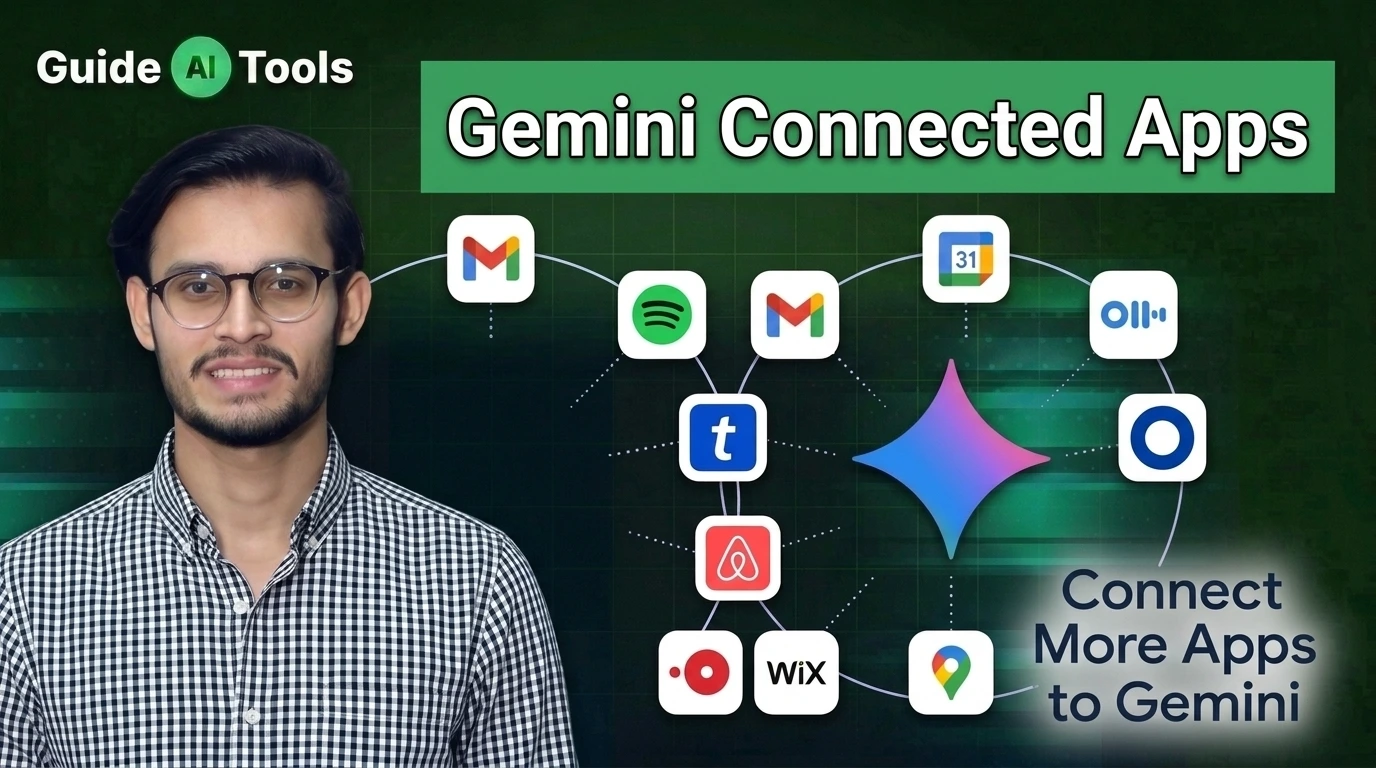
Google continues to expand Gemini features through tools such as Deep Research, Canvas, Gems, Gemini Live, and connected apps.
For people exploring AI tools for daily work, GuideAITools also covers other productivity solutions. You can compare Google Gemini with other AI assistants to find the right option for your workflow.
How Does Google Gemini Work?
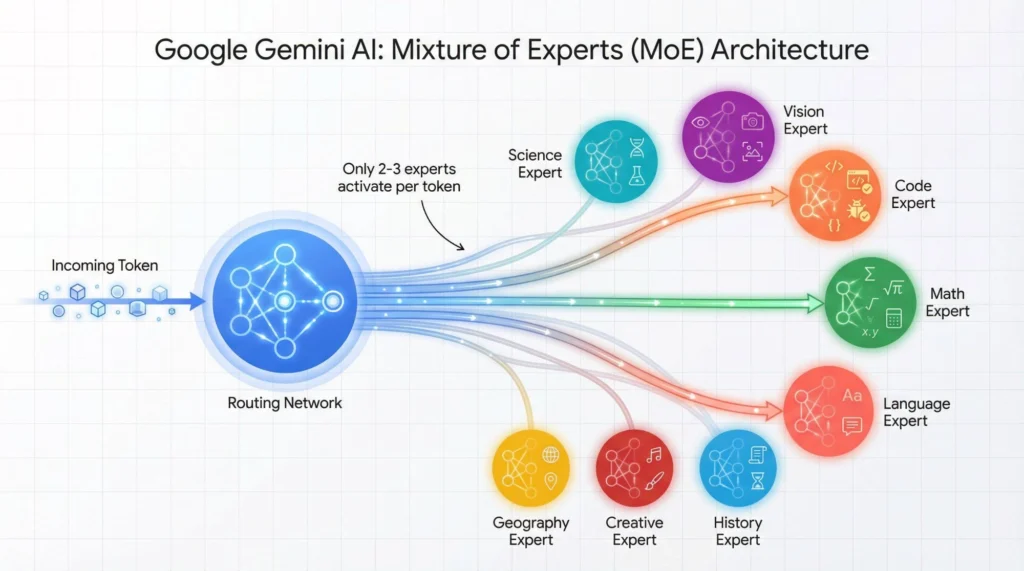
Gemini works through conversations. You describe what you need, and the AI generates a response based on your instructions.
A simple request:
“Write an email.”
will usually create a basic draft.
A better request:
“Write a professional follow-up email for a SaaS customer who requested a product demo. Keep it under 150 words and use a friendly business tone.”
will produce a more focused result.
The difference is context.
Gemini performs better when you explain:
- What you want
- Who the output is for
- What format you need
- Any restrictions or examples
You can also continue the conversation.
For example:
“Make it shorter.”
“Add three more examples.”
“Convert this into a table.”
“Explain it for a beginner.”
Small follow-up instructions can completely change the final result.
How to Start Using Google Gemini for the First Time
Getting started with Gemini takes only a few steps.
Step 1: Open Gemini
Visit the Gemini website or open the Gemini mobile app.
Step 2: Sign in
A Google account is required for many Gemini features and personalized experiences.
Step 3: Enter your first prompt
Start with a clear request.
Examples:
“Explain SEO basics for a beginner.”
“Create a weekly workout plan for someone with no gym experience.”
“Summarize this article in five points.”
Step 4: Improve the response
Do not stop after the first answer.
Ask Gemini to adjust the output:
“Make this more detailed.”
“Give me examples.”
“Add a comparison table.”
“Rewrite this for social media.”
A conversation usually produces better results than a single question.
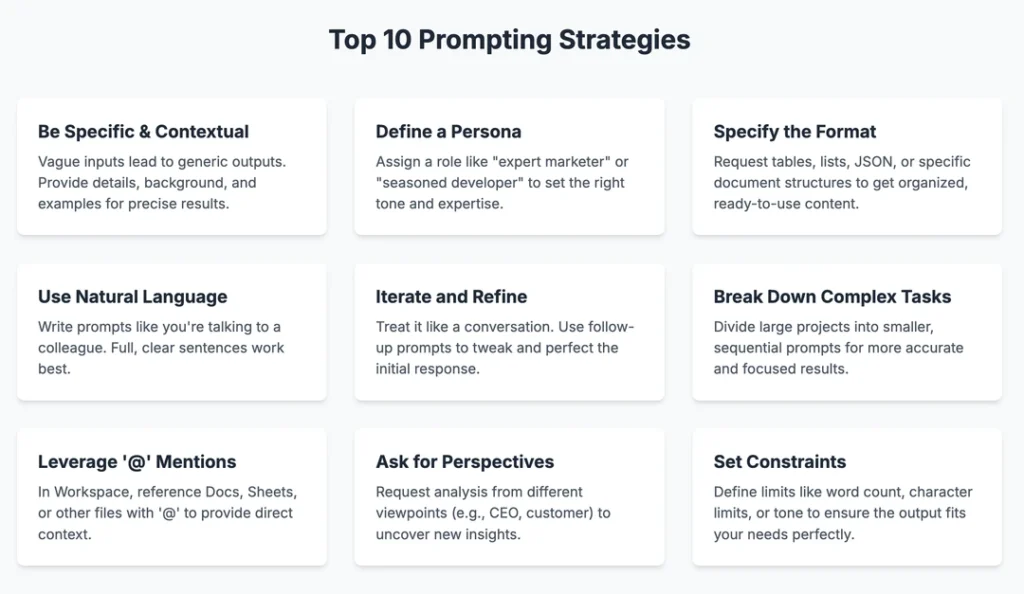
How to Write Better Prompts for Google Gemini
The biggest improvement most beginners can make is learning how to write better prompts.
A vague prompt creates a vague answer.
Compare these two examples.
Weak prompt:
“Write about artificial intelligence.”
Better prompt:
“Write a beginner guide about artificial intelligence for small business owners. Explain common AI tools, practical examples, benefits, and limitations in simple language.”
The second prompt gives Gemini more information.
A useful prompt structure is:
Context + Task + Details + Output Format
Example:
Context:
“I run a travel website.”
Task:
“Create blog ideas.”
Details:
“Target first-time international travelers.”
Output:
“Provide 20 ideas in a table with search intent.”
This structure works well for writing, research, planning, and business tasks.
If you want to improve your AI instructions further, read our guide on prompt engineering.
Google Gemini Prompt Examples
For Students
Prompt:
“Explain photosynthesis in simple language. Include a short example and create five quiz questions to test my understanding.”
For Content Writers
Prompt:
“Create an article outline about remote work tools. Include search intent, main sections, and questions readers may ask.”
For Marketers
Prompt:
“Create a social media content plan for a new coffee brand targeting university students. Include post ideas and captions.”
For Developers
Prompt:
“Review this code. Explain the issue first, then suggest possible improvements.”
The best prompts usually describe the outcome, not just the topic.
How to Upload Files and Analyze Documents in Gemini
One of Gemini’s most useful features is file analysis.
Instead of copying large amounts of text into a chat box, you can upload supported files and ask Gemini to analyze them.
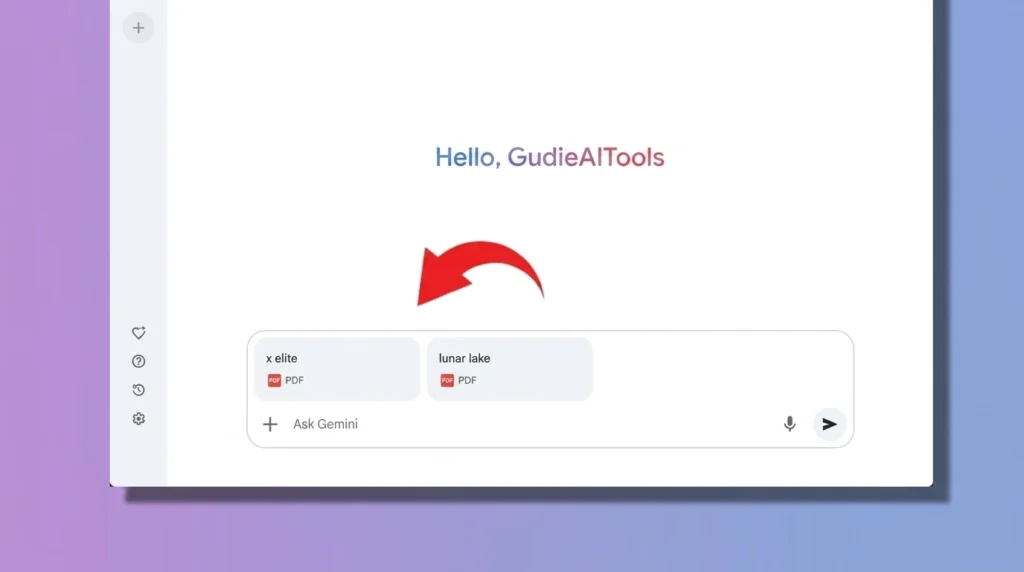
You can use file uploads for:
- PDFs
- Documents
- Spreadsheets
- Images
- Videos
- Research notes
- Code files
Examples:
“Summarize this PDF and list the five main findings.”
“Analyze this spreadsheet and identify unusual changes.”
“Review this document and suggest improvements.”
For better results, avoid simple requests like:
“Analyze this.”
Instead try:
“Analyze this sales report. Identify the biggest monthly changes, possible reasons, and create a short summary for management.”
Current file capabilities depend on your account, feature availability, and Google’s limits. Gemini supports multiple file types, including documents, images, audio, video, and code-related files.
How to Use Gemini Deep Research
Gemini Deep Research is designed for users who need more detailed research instead of a quick answer.
Regular Gemini chat answers a question.
Deep Research creates a research plan, gathers information from selected sources, and prepares a detailed report. Google says Deep Research can use Google Search as a default source and can also work with connected sources like Gmail, Drive, uploaded files, and NotebookLM notebooks when available.
A typical workflow looks like this:
- Open Gemini
- Select Deep Research
- Write your research request
- Review the generated research plan
- Start the research
- Review the final report
- Edit, export, or continue the discussion
Example prompt:
“Research the AI video editing market. Compare the top tools by features, pricing, target users, and limitations. Use official sources where possible.”
Deep Research is useful for:
- Market research
- Academic topics
- Product comparisons
- Business planning
- Competitive analysis
Google notes that research reports usually take several minutes because Gemini analyzes multiple sources before creating the final report.
How to Use Gemini Canvas
Gemini Canvas is a workspace where you can create and edit longer projects.
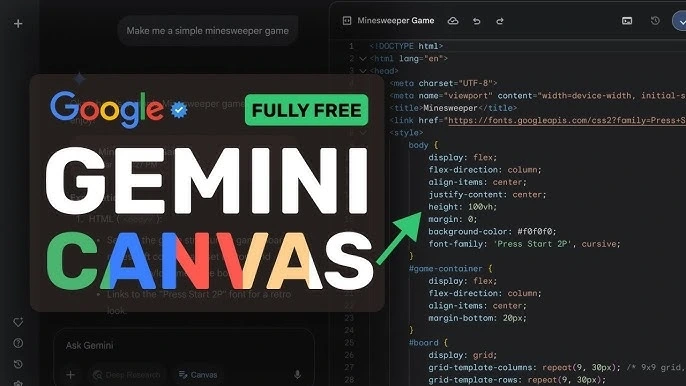
It is useful for:
- Documents
- Code
- Presentations
- Apps
- Infographics
- Learning materials
Instead of only receiving text in chat, Canvas gives you a working area where you can refine your output.
Examples:
“Create a five-slide presentation about renewable energy.”
“Build a simple webpage explaining my product.”
“Create a study guide from these notes.”
Canvas can help turn ideas into structured projects. Google describes Canvas as a space for writing, coding, creating apps, infographics, quizzes, and other outputs.
For creators and marketers, this is useful because you can move from an idea to a working draft faster.
What Are Gemini Gems?
Gems are customized versions of Gemini that follow specific instructions.
Think of them as specialized assistants for repeated tasks.
Examples:
A content planning assistant
A study tutor
A coding reviewer
An email writing assistant
A research helper
Instead of explaining the same instructions every time, you create a Gem once and reuse it.
Example Gem instruction:
“You are my SEO content assistant. Before creating an outline, identify search intent, keywords, entities, content gaps, and FAQ questions.”
Gems are useful when the same workflow happens repeatedly. Google provides tools for creating and using Gems inside Gemini Apps.
Do not create a Gem for a single question.
Use one when a repeated process needs the same style or instructions.
How to Use Gemini for Everyday Tasks
Gemini can help with many common tasks.
| User Type | Task | Example Prompt |
|---|---|---|
| Student | Learning | Explain this topic and create practice questions |
| Writer | Editing | Improve this article while keeping the original meaning |
| Marketer | Content planning | Create a monthly content calendar |
| Developer | Coding | Explain this error and suggest fixes |
| Business owner | Planning | Turn these notes into an action plan |
| Researcher | Analysis | Compare these studies and summarize findings |
For content creators, AI tools can also help with specific tasks like editing, research, and content planning. Explore more AI tools for content creators to build a stronger workflow.
Google Gemini Free vs Paid Plans
Gemini offers free access along with paid Google AI plans that provide higher limits and additional features.
| Plan | Price | Best For |
|---|---|---|
| Free | $0 | Basic questions and everyday tasks |
| Google AI Pro | $19.99/month | Regular users needing higher limits |
| Google AI Ultra | Starting at $99.99/month | Heavy users needing maximum access |
Pricing and availability can vary by country and account.
Paid plans are mainly useful for people who use Gemini frequently for research, creative work, coding, or professional tasks.
A casual user may find the free version enough.
A researcher, developer, or content professional may benefit more from higher limits.
Can You Trust Google Gemini Answers?
Gemini can be helpful, but you should still review important information.
AI can produce incorrect details.
Google itself advises users to double-check Gemini responses because generated answers may contain mistakes.
Good habits:
- Check important facts
- Review sources
- Verify numbers and dates
- Avoid using AI output without editing
- Use original sources for professional decisions
A useful question to ask Gemini:
“Which parts of this answer should I verify?”
That often leads to better results.
Is Google Gemini Worth Using in 2026?
Yes, Gemini is worth trying if you want an AI assistant that works across writing, research, files, coding, and Google services.
The biggest benefit is not one specific feature.
It is the ability to handle different types of work in one place.
Start simple.
Ask questions.
Upload a file.
Try Deep Research.
Create a Gem when a task repeats.
The more clearly you explain your goal, the more useful Gemini becomes.
FAQs
Is Google Gemini free to use?
Yes, Google Gemini has a free version. Paid Google AI plans provide higher usage limits and additional features.
Do I need a Google account to use Gemini?
A Google account is required for many Gemini features, saved activity, and personalized experiences.
What can Google Gemini do?
Gemini can answer questions, create content, analyze files, help with coding, research topics, generate ideas, and assist with productivity tasks.
Can Gemini analyze PDF files?
Yes, Gemini supports document analysis, including supported file uploads. Available limits depend on account and feature availability.
What is Gemini Deep Research?
Gemini Deep Research creates detailed research reports by planning research tasks and analyzing information from selected sources.
What is Gemini Canvas used for?
Canvas is used for creating and editing documents, code, apps, presentations, quizzes, and other structured projects.
What are Gemini Gems?
Gems are customized Gemini assistants created with specific instructions for repeated tasks.
Can Google Gemini make mistakes?
Yes. Gemini can provide incorrect information, so important details should always be checked.
Final Thoughts
Google Gemini is more useful when you stop treating it like a basic chatbot.
The best results come from giving clear instructions, adding useful context, and choosing the right feature for the task.
Use regular chat for quick questions.
Use file uploads for analysis.
Use Deep Research for detailed reports.
Use Canvas for building projects.
Use Gems for repeated workflows.
For beginners, the easiest way to start is simple: pick one real task you already do and ask Gemini to help with it.
As you learn what works, you can explore more AI tools and workflows through GuideAITools to find solutions that match your needs.

Related Blog Posts