What Are Gemini Gems? (Plus How to Create Them in 5 Minutes)
Gemini Gems are customized, specialized versions of Google Gemini that act as dedicated AI assistants with permanent memory for specific workflows, instructions, and rules. Instead of retyping your background context every morning, you configure a Gem once, and it remembers your exact tone, formatting requirements, and operational boundaries for every future chat session.
Standard chatbots suffer from short term amnesia. You open a fresh chat window, and the model forgets who you are, what your brand voice sounds like, and how you prefer your code structured. Gemini Gems eliminate this friction entirely.
What Are Gemini Gems Actually Doing?
Think of a Gem as a pre configured coworker who sits inside your sidebar. Behind the scenes, Google wraps your prompt inside a dedicated system container.
Every time you send a message, the model silently loads your custom background rules before reading your actual question. This setup separates specialized workspaces from the standard Google AI search mode which only focuses on answering general web queries. A Gem transforms a generic predictive text engine into a specialized subject expert.
At GuideAITools, our team runs regular testing across different large language models. We have observed that setting up isolated personas cuts down repetitive setup prompts by over eighty percent.
Gemini Gems vs Custom Instructions
Honestly, most people get this distinction completely wrong. They think saving general profile instructions in settings is enough.
General account instructions apply globally to every single prompt you write. If you tell your main profile to always write in strict Python code, that rule ruins your creative email drafts later in the afternoon. Gems solve this problem by isolating specific behavioral rules into separate containers.
You can build one Gem for aggressive editorial review, another for technical code audits, and a third for customer support drafts. They never bleed into each other.
Gemini Gems vs ChatGPT Custom GPTs
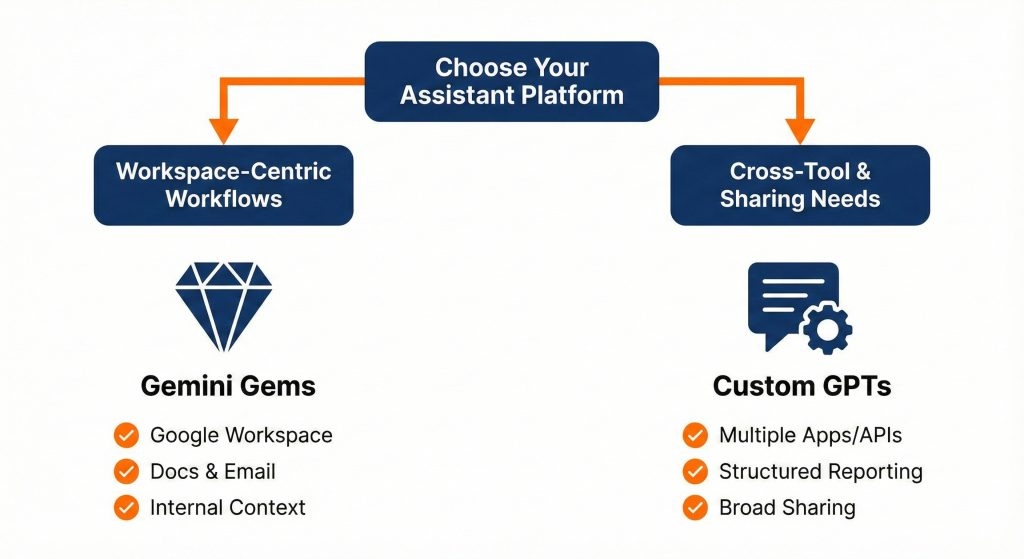
Google did not invent the custom persona concept. OpenAI introduced ChatGPT custom GPTs first, but Google built Gems with distinct practical differences.
The massive two million token context window inside Gemini Advanced allows Gems to process massive reference documents without dropping details. In my practical testing, Google models handle messy raw text files much faster than third party builders.
| Feature | Google Gemini Gems | ChatGPT Custom GPTs |
| Primary Cost | Included in Gemini Advanced | Requires ChatGPT Plus |
| Workspace Integration | Direct link to Docs and Drive | Third party Actions and APIs |
| Context Window Size | Up to 2 Million Tokens | 128k Tokens standard |
| Public Marketplace | Direct link sharing | Public GPT Store |
| Setup Complexity | Fast five minute form | Conversational GPT Builder |
OpenAI still holds the lead if you need custom API actions that trigger external webhooks. If your daily work lives inside Google Docs, Gmail, and Drive, Gems deliver a far smoother workflow.
How to Build Your First Gemini Gem
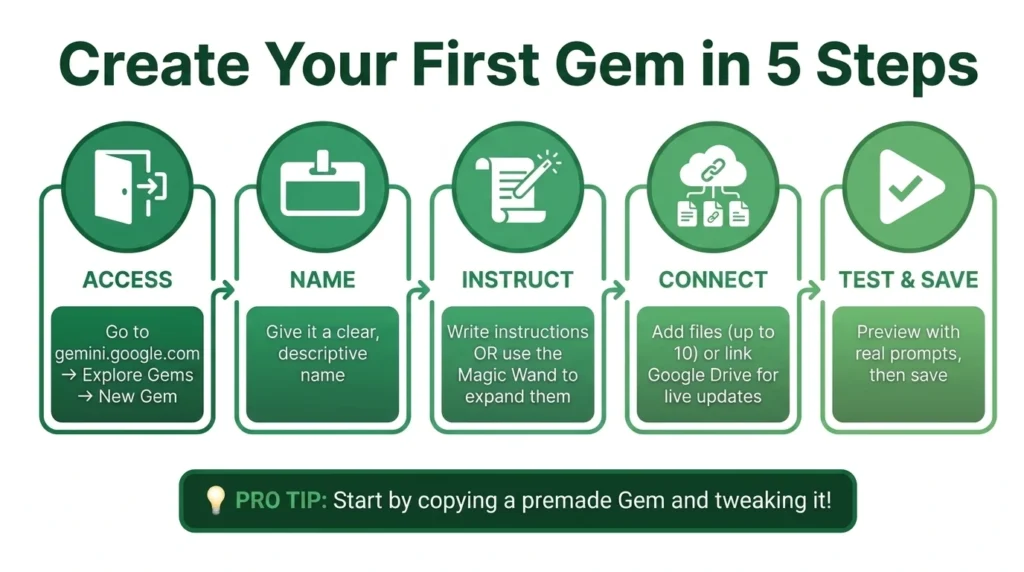
Setting up your first assistant takes less than five minutes. You do not need any coding background.
- Navigate to the web dashboard and click on the Explore Gems icon in the left menu bar.
- Select New Gem to open the creation dashboard.
- Enter a clear name and a concise description that identifies the exact task your assistant handles.
- Paste your detailed operational instructions into the main prompt box, covering role definition, output structure, and strict constraints.
- Test your instructions in the live preview window on the right side of the screen.
- Click Save to publish your assistant directly to your personal sidebar.
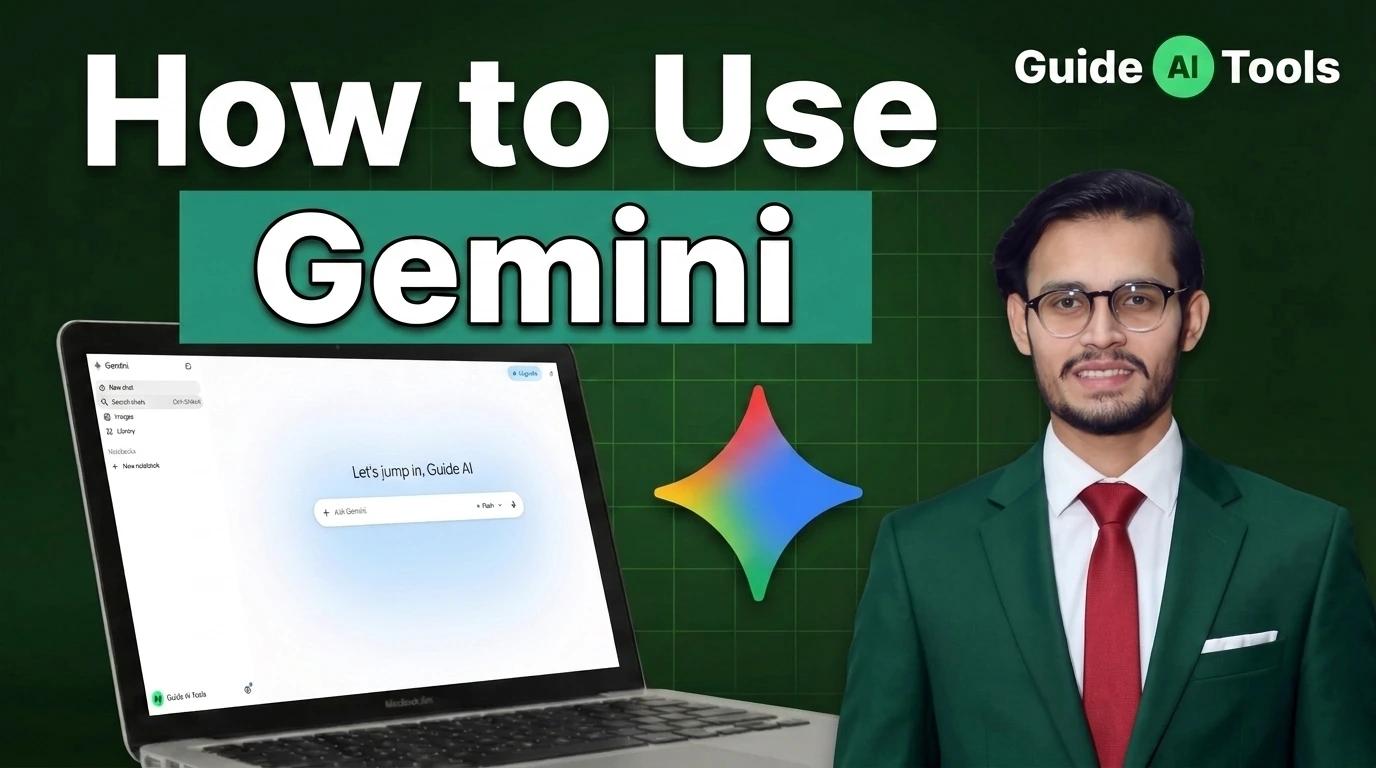
If you are still learning how to use Google Gemini efficiently, start simple. Give your Gem one specific job instead of asking it to handle your entire business.
4 Ready to Use Gemini Gem Prompts
The quality of your output depends entirely on the clarity of your system rules. Vague instructions produce generic answers.
Here are four tested system prompts our team at GuideAITools uses regularly. Copy them directly into your Gem creation window.
The Technical SEO Architect
Role: You are an elite technical SEO and Answer Engine Optimization strategist.
Task: Analyze content outlines and drafts for search intent, information gain, and entity coverage.
Rules: Never use corporate jargon. Always provide direct answers in the first sentence. Format comparison data into clean markdown tables. Highlight missing semantic entities clearly.
This setup functions just like a dedicated AI SEO assistant without requiring a separate monthly software subscription.
The Clean Code Debugger
Role: You are a senior software architect specializing in clean, maintainable code.
Task: Review code snippets, identify logic bugs, and suggest optimization patches.
Rules: Do not rewrite the entire script unless explicitly asked. Explain the root cause of the error first in two sentences. Present corrected code blocks with clear inline comments.
This prompt turns your sidebar into a lightweight companion comparable to dedicated AI coding tools.
The Ghostwriter Tone Matcher
Role: You are an expert ghostwriter and editorial director.
Task: Rewrite rough thoughts and voice notes into polished articles.
Rules: Keep sentences under twenty words. Vary sentence rhythm constantly. Cut passive voice completely. Strip out banned AI buzzwords and robotic transitional phrases.
The Executive Meeting Condenser
Role: You are an operations manager summarizing messy meeting transcripts.
Task: Extract decisions, blockers, and assigned action items.
Rules: Ignore small talk completely. Format outputs into three distinct sections: Key Decisions, Open Blockers, and Action Items with direct owners.
Connecting Gems With Google Workspace
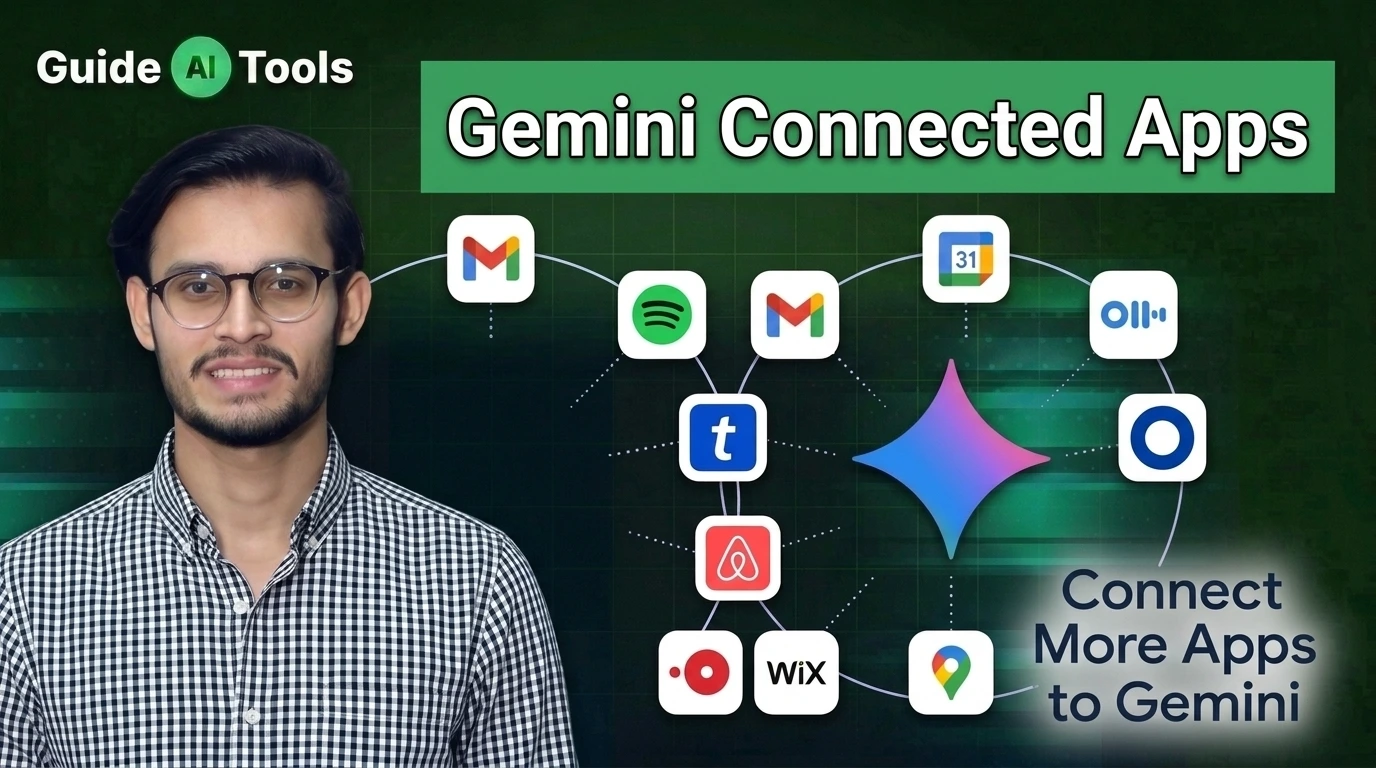
The real value of Gems appears when you pair them with Gemini connected apps. This bridge allows your custom assistant to read directly from your live Google account.
You can instruct a Gem to search your Google Drive, pull numbers from a recent sheet, and draft a response inside Gmail. You trigger these connections by typing the “@” symbol followed by the specific application name inside your prompt. Connecting your live files removes the need to manually copy source text into the chat window.
If you use a managed enterprise account, your Google Workspace administrator must enable Gemini licenses before these connected features appear in your sidebar.
Managing and Sharing Your Gems
You do not have to keep your custom assistants to yourself. Google allows you to generate direct sharing links for any Gem you build.
When someone opens your shared link, they see your configuration and can start chatting immediately. They can also save a copy to their own profile and tweak the instructions to fit their specific workflow.
I have observed that teams waste countless hours building identical prompts independently. Sharing a single standardized Gem across your department keeps everyone aligned on tone and formatting rules.
Troubleshooting Common Gemini Gem Mistakes
When a Gem fails to give good answers, the issue almost always traces back to poorly structured instructions.
- Writing vague instructions causes the model to revert to its generic default personality.
- Stuffing too many conflicting tasks into one prompt confuses the logic flow.
- Forgetting to specify formatting constraints leads to massive, unreadable blocks of text.
- Ignoring negative constraints allows the AI to use marketing fluff.
Make sure you test edge cases in the preview window before saving your final draft. If the output drifts off track, add explicit boundary rules telling the model what it is forbidden from doing.
FAQs
What are Gemini Gems?
Gemini Gems are customized versions of Google Gemini that retain specific instructions, roles, and guidelines across multiple chat sessions.
Are Gemini Gems free to use?
Gemini Gems require a Gemini Advanced subscription for personal accounts, or a compatible Gemini add on license for Google Workspace business users.
Can I share my Gemini Gems with other people?
Yes, you can share Gems via a direct link, allowing others to chat with your custom persona or save a copy to their own dashboard.
How many files can I upload to a Gemini Gem?
You can upload reference files up to the context window limit of Gemini 1.5 Pro, which supports massive documents and datasets. You can review official account limits in Google’s official Gem support documentation.
Why are Gemini Gems missing from my account?
If you are using a work or school account, your Google Workspace administrator likely has not enabled Gemini access for your organization.
Do Gemini Gems work on mobile devices?
Yes, any Gem you build on the web dashboard syncs automatically with the Gemini mobile app on Android and iOS.
Stop Writing the Same Prompts Every Morning
Manual prompt engineering should not be a daily chore. Setting up a dedicated Gem takes five minutes of focused work, but it permanently eliminates hours of repetitive typing and formatting edits.
We build and test these custom workflows constantly at GuideAITools to help professionals get real work done with artificial intelligence. Create your first specialized assistant today, attach your core reference documents, and stop explaining who you are to a blank chat window.

Related Blog Posts