Best AI Image Editor Tools: 11 Picks for Every Kind of Edit
The best AI image editor depends on the photo in front of you. For control, Adobe Photoshop wins. For an edit you can describe in a sentence, Google Gemini wins. For product photos, Photoroom wins. A blurry listing shot is one job. A portrait with a stranger in the back is another. A flat sky over a house for sale is a third. No single tool does all three well.
At GuideAITools we compared 11 editors across the jobs people actually pay for. Removing objects and backgrounds. Fixing light and noise. Expanding a frame. Cleaning up hundreds of product photos at once. Every price was verified from official pricing pages, and every free plan is described by its real limit, including the ones that ban commercial use.
Start with the table. Then read the section that matches your job. The full AI image editor tools category carries the wider field.
Best AI Photo Editor Picks at a Glance
Eleven tools, four kinds of buyer. Photoshop and Luminar Neo are desktop editors built for serious work. Gemini, Pixlr, Fotor and Krea run in a browser tab. Photoroom and Pixelcut exist for one job, product photos. Canva and Picsart start from the post you want to publish, not the photo.
| Tool | Best for | Free plan | Paid from | Watch out for |
|---|---|---|---|---|
| Adobe Photoshop | Pro editing, compositing, print work | No, free trial only | US$22.99/mo, annual billed monthly | Steep learning curve, heavy app |
| Google Gemini | Editing a photo by describing the change | Yes, at $0 | $4.99/mo for AI Plus | Described edits can drift and soften detail |
| Canva Magic Studio | Social posts and fast design edits | Yes, at US$0 | US$18/mo billed monthly | Fine control is limited, no real layers |
| Pixlr | Free and low-cost browser editing | Yes | $2.49/mo | Free tier runs ads and caps daily saves |
| Photoroom | Product photos and marketplace listings | Yes | $4.99/mo billed monthly | Free plan is personal use only |
| Luminar Neo | Pay-once editing with one-click AI fixes | No free tier in the verified figures | $99 one-time | Promotional price, may not hold |
| Topaz Photo | Repairing blurry and noisy photos | No free tier in the verified figures | $39/mo | Repair only, not a full editor |
| Fotor | Online editing and batch background removal | Yes | US$8.99/mo billed monthly | Free exports at standard resolution |
| Pixelcut | Product cutouts from a phone | Yes, at $0 | $8/mo billed yearly | Free plan caps exports |
| Picsart | Social edits with templates and stickers | Yes | $10.50/mo billed yearly | Yearly billing on the checked figures |
| Krea | Prompt-based edits across many models | Yes, at $0 | $9/mo | Quality varies by the model you pick |
Read the Paid from column with care. Two identical numbers can mean two different bills. One tool quotes per month billed yearly. Another quotes per month billed monthly. The yearly figure always looks cheaper on sign-up day. The renewal price is the one that matters.
How We Judged These Editors
We judged these editors on four tests. Matting quality on hair and glass edges, where weak background removal falls apart. Object removal on busy backgrounds, where AI masking has to guess what sits behind the thing you deleted. Export resolution on the free tier, because a sharp edit you can only download small is half an edit. And licence terms for commercial work, the line most roundups skip.
Two splits matter as much as the tests. Where the edit happens is the first. Topaz Photo, Luminar Neo and Photoshop on desktop use local processing on your own machine. The other eight rely on cloud processing. Your photo goes up to a server. Fine for a product shot.
A harder call for client work under embargo. The second split is the meter. AI credits, exports and generations are three different counters. Credits burn per AI action. Exports count finished files out the door. Generations count new images made. The cap you hit first decides your real monthly cost, and at GuideAITools we weighted that cap as heavily as the headline price.
The 11 Best AI Image Editors, One by One
Adobe Photoshop – AI Image Editor with Generative Fill and Real Layers

Photoshop is still the editor the others get measured against. It works in real layers. Generative Fill handles inpainting inside a selection. Generative expand does the outpainting job when a frame needs more room at the edges. Both run on Adobe Firefly. The Harmonize feature matches a pasted object to the light and color of the scene under it. The honest limit is weight: this is the slowest tool here to learn.
Price: US$22.99 per month on an annual plan billed monthly, with a free trial and no free plan. The Photography plan bundles Lightroom with Photoshop at US$19.99 per month. Photoshop for teams runs US$37.99 per month per licence.
Google Gemini – Edit a Photo by Describing the Change

Gemini edits the way you would brief a person. Upload a photo. Type “remove the man in the red jacket and warm up the light”. The Nano Banana image model rebuilds the picture around your words. No masking. No layers. Nothing to paint. For a quick fix on a phone photo, nothing in this list starts faster.
The failure modes are plain. A described edit rebuilds the whole image, so faces can shift between versions and fine detail can soften. Skip it if your work needs pixel-level control. Gemini also stamps its output with the invisible SynthID watermark. DeepMind’s Nano Banana 2.1 model card sets out what that marker does, and where consistency still breaks down.
Price: the free tier costs $0. Google AI Plus is $4.99 per month, and Google AI Pro is $19.99 per month.
Canva Magic Studio – Fastest Route from Photo to Finished Post

Canva starts from the post, not the photo. Magic Studio puts background removal, Magic Edit and Magic Eraser inside the same canvas as your templates, Brand Kits and captions. A product photo becomes a finished Instagram post without leaving the tab. For a social media manager, that single workspace is the whole argument.
The limit is depth. Canva edits a photo well enough for a feed, but it is not built for careful retouching, RAW files or layered compositing. A photographer will feel the ceiling fast.
Price: the free plan costs US$0. Pro is US$18 per month billed monthly, or US$144 per year, which works out at US$12 per month. Business is US$25 per month per person billed monthly, or US$250 per year per person. Enterprise is custom priced.
Pixlr – Best Free AI Image Editor in a Browser
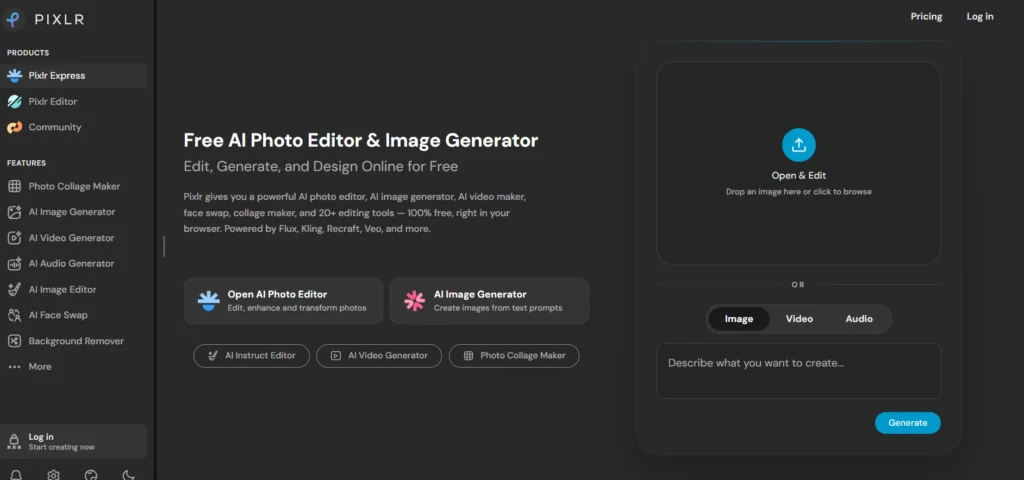
Pixlr is the free pick because the free tier is genuinely usable. It runs in a browser and opens fast. The everyday list is covered: background removal, object cleanup, filters, and quick AI generation when a photo needs a missing piece filled in.
The catch is written on the free tier itself. It runs ads. It also caps your daily saves, so a long session can end at the cap instead of at the end of your photos. The paid tiers are cheap enough that the cap, not the features, is the reason to upgrade.
Price: Plus is $2.49 per month, or $1.99 per month billed yearly. Premium is $9.99 per month, or $7.99 billed yearly. Ultra starts at $24.99 per month, or $19.99 billed yearly.
Photoroom – Best AI Image Editor for Product Photos

Photoroom does one job with total focus. It takes a phone snap of a product and returns a clean listing image. Background gone. Shadow rebuilt. Sized for the marketplace you sell on. Sellers who shoot hundreds of items lean on its batch processing and API access. At GuideAITools, the free plan line below is the one we would underline twice.
Read that line before you build a shop on it. Photoroom’s free tier runs on a personal-use licence, so the photos it produces are not cleared for your store. Most sellers end up on a paid plan from day one.
Price: Pro is $4.99 per month billed monthly, or $2.99 per month billed yearly, with 8,000 AI credits and 1,000 exports a month. Max is $12.50 per month billed monthly, or $6.99 billed yearly, with 25,000 credits and 3,000 exports. Ultra is $99 per month billed monthly, or $82.50 billed yearly, with 75,000 credits and 10,000 exports.
Luminar Neo – One Payment, No Subscription

Luminar Neo is the subscription refusenik of this list. It is a desktop editor built around one-click AI fixes. Sky AI replaces a dull sky. Relight AI rebalances the light across a scene. Denoise, sharpen and crop tools sit alongside. It processes locally too, which suits photographers who keep client work off other people’s servers.
The limit is scope. It is a photo finisher, not a compositing bench, and tricks like generative fill are not its game. It also lives or dies on the power of your machine.
Price: Luminar Neo is sold as a one-time payment. It is $99 on the official pricing page at the time of checking, shown as a cut from a $417 list price. Promotional prices move, so treat that figure as today’s, not a promise.
Topaz Photo – The Repair Shop for Blurry and Noisy Photos

Topaz Photo does not try to be your editor. It is the repair shop you visit on the way to one. Denoise AI cleans high-ISO grain. The sharpening tools rescue soft focus. Upscale AI rebuilds resolution on small or cropped files, including RAW files from older cameras. Wedding and wildlife shooters use it to save frames that would otherwise be deleted. It runs locally, so those frames never leave the machine.
The limit follows from the focus. No design canvas. No template shelf. No batch background removal for a catalogue. It fixes photos, then hands them back to the editor you actually work in.
Price: Topaz Photo costs $39 per month on the official pricing page.
Fotor – AI Photo Editor Online with Batch Background Removal

Fotor is the online all-rounder with one feature sellers notice first: batch background removal. Point it at a folder of product shots. It cuts them all out in one run. An afternoon of masking becomes a coffee break. The rest of the editor is broad and friendly, with one-click fixes for portraits and social sizes.
The free tier carries a familiar trap. Free exports come out at standard resolution, fine for a post and too soft for a print or a zoomable listing. Batch work at full size is a paid habit here.
Price: Pro is US$8.99 per month billed monthly, or US$3.33 per month billed yearly at US$39.99 a year, with 100 credits a month. Pro+ is US$19.99 per month billed monthly, or US$5.24 billed yearly at US$62.99 a year, with 300 credits. Max is US$29.99 per month billed monthly, or US$20.99 billed yearly at US$251.92 a year, with 1,000 credits.
Pixelcut – Product Cutouts from Your Phone

Pixelcut is Photoroom’s phone-first rival. It cuts a product out of a photo and drops it on a clean background. Shadows and marketplace templates are added for you. All of it happens on the phone you shot it with. For a seller listing from a market stall, that is the point.
The limit is the ceiling. Heavy catalogues, API work and fine retouching belong on bigger tools, and the free plan caps your exports, so a busy listing day ends quickly.
Price: the free plan costs $0. Pro is $8 per month billed yearly, or $10 billed monthly. Business is $24 per month billed yearly, or $30 billed monthly.
Picsart – Social Edits with Templates and Stickers

Picsart is the social editor of the group. Photo fixes sit next to templates, stickers, text effects and collage tools. The whole app is tuned for a post that needs to look busy and bright in a feed. Its AI background removal and object cleanup are good enough for that job, and the template library does the heavy lifting on style.
The limit is intent. Picsart makes posts, not production files. Print work, careful retouching and catalogue editing all belong elsewhere.
Price: Pro is $10.50 per month billed yearly. Ultra is $24.50 per month billed yearly. Both figures are yearly billing, so there is no cheaper monthly door in.
Krea – Prompt-Based Edits Across Many Models

Krea is a workbench rather than a single editor. It routes your photo through a shelf of image models. The same picture can be upscaled by one model, restyled by another, and edited from a written prompt by a third. Creators who test models against each other get more range here than any single-vendor tool offers.
The trade-off is consistency. A prompt edit can soften detail or drift away from the original between runs, and quality varies with the model you pick. Your edits also happen on Krea’s servers, not on your machine, which matters for client photos.
Price: the free plan costs $0 and includes 100 units a day. Basic is $9 per month, Pro is $35 per month, and Max is $105 per month.
Which Editor Fits Your Job?
Marketplace seller: start with Photoroom, because listing-ready backgrounds and batch exports are its entire design. Pixelcut is the runner-up when you shoot and list from your phone.
Portrait photographer: start with Luminar Neo for one-click light fixes on your own machine. Swapping a face instead of fixing one? Read our roundup of the best AI face swap tools. Generating a headshot instead of retouching one? Start with the best AI avatar generators.
Social media manager: start with Canva, because the photo, the template and the caption live in one tab. Picsart is the runner-up when the post needs stickers and collage energy.
Real estate agent: start with Gemini, because describing a brighter sky or a tidier garden is faster than masking it. Photoshop is the runner-up for careful work on a hero shot.
Designer who needs layers: start with Photoshop, because nothing else here stacks edits in real layers. Krea is the runner-up for model range when the job is experimental.
Notice the pattern. Every pick is a job first and a brand second. The runner-up exists because volume, budget and taste change the answer.
Free Plans and Export Caps, Side by Side
The licence line, not the price line, is where free plans bite. Some free tiers restrict commercial use. Others cap the file you can take home. A shop built on the wrong free plan has a real problem. At GuideAITools we put the caps side by side, so you can see which meter runs out first at your volume.
| Tool | Free plan limit | Licence on free plan | Paid cap that bites first |
|---|---|---|---|
| Adobe Photoshop | No free plan, free trial only | None, trial terms | Subscription only, no credit meter |
| Google Gemini | Free tier at $0 | Free tier terms | Plan usage limits, raised on paid tiers |
| Canva Magic Studio | Free at US$0 | Free plan terms | Brand Kits and premium content on paid tiers |
| Pixlr | Ads, daily save cap | Free tier terms | AI credits on paid tiers |
| Photoroom | Personal use only | Personal use, not commercial | Exports: 1,000 a month on Pro |
| Luminar Neo | No free tier in the verified figures | None until paid | One-time payment, no monthly cap |
| Topaz Photo | No free tier in the verified figures | None until paid | Subscription only, no credit meter |
| Fotor | Standard resolution exports | Free tier terms | Credits: 100 a month on Pro |
| Pixelcut | Export cap | Free tier terms | Exports, raised on paid tiers |
| Picsart | Free tier | Free tier terms | Yearly plans only, no monthly tier |
| Krea | 100 units a day | Free tier terms | Daily units, raised on paid tiers |
Put in job terms, the caps stop being abstract. Exporting 100 product photos a month uses a tenth of Photoroom Pro’s 1,000-export allowance. The $4.99 plan covers that job with room to spare. On Fotor Pro, the same seller holds 100 credits a month for every AI action, edits included. And 400 mixed edits in a month? A rounding error on a Krea paid tier, but months of saving on the free daily units. The plan price is fixed. The price per job is not.
AI Image Editor or AI Image Generator?
An editor and a generator start from opposite ends. An AI image editor changes a photo you already have: it removes, repairs, expands and relights what the camera caught. An AI image generator starts from a sentence and invents a picture that never existed. If your problem sits inside a real photo, you want an editor, and the AI image generator tools category is the wrong shelf for it.
The two meet in the middle more than they used to. Generative Fill invents new pixels inside a real photo. A described Gemini edit can rebuild a scene outright. When you need a picture of something you never photographed, generation is the honest tool for the job. The wider AI image tools category shows both families side by side.
FAQs
What is the best AI image editor overall?
It depends on the photo. Photoshop gives the most control, Gemini edits from a sentence, and Photoroom turns product snaps into listing images fastest. Pick by the job you repeat every week, not by the longest feature list.
Is there a free AI image editor without a watermark?
Yes. Pixlr is the common pick. Its catches are ads and a daily save cap, not a stamp on your file. Other free tiers cap you differently: Pixelcut caps exports, and Fotor free exports at standard resolution.
Can an AI image editor remove people from a photo?
Yes. Object removal is a standard trick in this list. Photoshop fills the gap with Generative Fill. Gemini removes a person from a written instruction. Fotor and Pixlr offer one-click cleanup. Busy backgrounds and hair edges are where the seams show.
Which AI image editor is best for product photos?
Photoroom. It was built for marketplace listings, with batch processing, rebuilt shadows and export sizes for the big platforms. Pixelcut is the runner-up if you would rather work from your phone.
Do AI image editors work on phone photos?
Yes, and most of this list needs no install at all. Pixlr, Fotor, Gemini and Pixelcut all work on phone photos in a browser or an app. Desktop tools like Topaz Photo earn their place when the file is a RAW from a real camera.
Can AI image editors replace Photoshop?
For most people, yes. Background removal, object cleanup and quick fixes are faster elsewhere. Photoshop keeps its crown where layers, careful compositing and print-ready files matter, which is why pros still pay for it.
Are AI-edited images safe to use in ads and shop listings?
On a paid plan, usually yes, because paid tiers carry the commercial licence. The trap sits in the free tiers. Photoroom’s free plan is personal use only, so a shop built on it is breaking its own licence terms. Read the licence line before the price line.
Conclusion
Match the tool to the job and the list shortens itself. Selling products? Download Photoroom first, and pay for it before your first listing, because its free plan is personal use only. Editing casually? Start with Pixlr, and let the daily save cap, not a salesperson, tell you when to upgrade. Working professionally? Photoshop is still the first download, layers and all. At GuideAITools we would rather you start on the free tier whose licence fits your work than on the tool with the loudest feature list. Pick the job, check the cap, then pay.

Related Blog Posts