What is Google AI Mode? A Complete Guide to AI Search (2026)
Google AI Mode is an automated search feature that uses generative AI to read multiple web pages and synthesize a direct answer at the very top of your search results. It bypasses traditional blue links to give you immediate facts and summaries for complex conversational queries.
Google Search looks completely different right now. If you are seeing full paragraphs of text answering your questions before the actual links even appear, you have officially encountered this new interface.
Here at GuideAITools we spend hours testing search behaviors every week. Honestly, most people get confused about how to control this feature or how it actually impacts their daily browsing. Let us fix that right now.
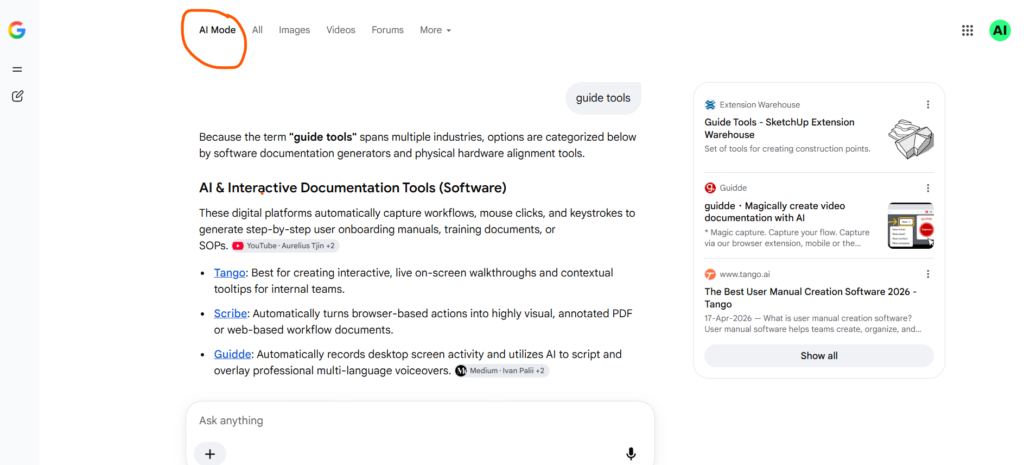
What Exactly is Google AI Mode?
This feature was originally known as the Search Generative Experience or SGE. Google built it directly into the main search engine using their custom language models.
When you ask a complicated question, the system does not just match keywords anymore. It actively reads the top ranking pages and writes a brand new paragraph summarizing the consensus. You get the answer without clicking a single link.
This shifts how we all use the internet. You can find detailed technical breakdowns of the Google Search AI mode on our news feed. But for everyday users, the main thing you need to know is that this is an opt-in setting you can actively control. You are never forced to use it if you know where the off switch lives.
Google AI Mode vs Google Gemini: What is the Difference?
People constantly mix these two products up. I see this misunderstanding everywhere.
AI Mode lives quietly inside your normal Google search bar. It only wakes up when you ask a complicated question. Gemini is a completely separate chatbot workspace where you go to hold long conversations or generate original content.
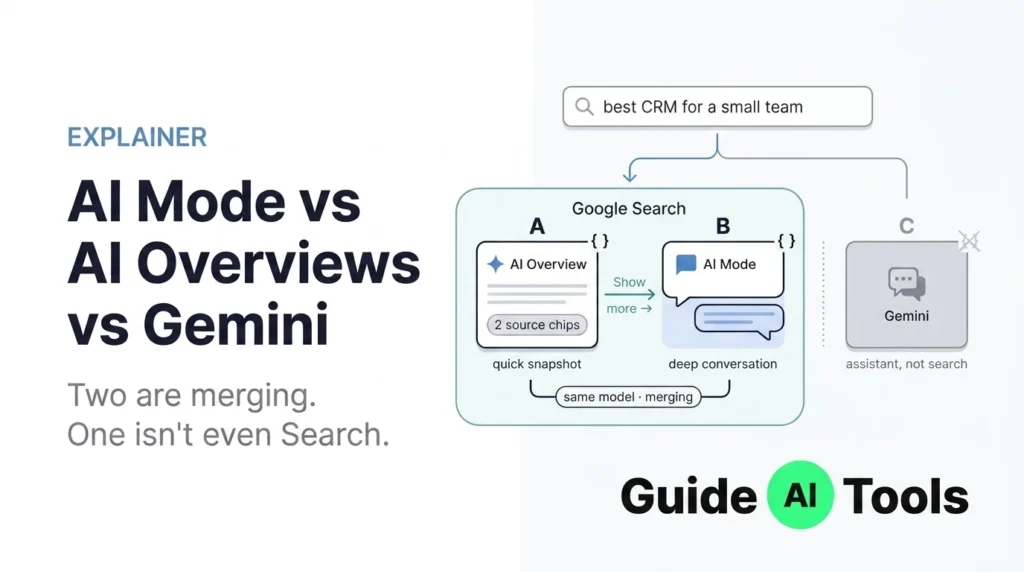
If you want to know how to use Google Gemini properly, you have to treat it like a dedicated assistant. AI Mode is just a faster way to search.
| Feature | Google AI Mode (Search) | Google Gemini (Chatbot) |
| Location | Main Google Search bar | Separate Gemini app and website |
| Purpose | Fast answers to search queries | Long conversations and task automation |
| Trigger | Automatic for complex questions | Manual user input |
| Content | Synthesized from current web pages | Generated from AI training data |
Knowing this distinction saves you hours of frustration when trying to research specific topics.
How to Turn On Google AI Mode
Activating this feature takes less than a minute. You just need to know which settings menu to open.
I highly recommend setting this up if you do a lot of research for school or work. Google even rolled out specific Gemini student learning tools that tie directly into these search capabilities.
Here is exactly how to activate it:
- Open your web browser and go to the official Google Search Labs page.
- Look for the AI Overviews and more card at the top of the screen.
- Click the toggle switch to turn the feature on.
- Agree to the terms and wait a few seconds for the page to refresh.
If you use a phone, you can find the exact same toggle inside the main Google App settings. Getting Gemini AI browser help on mobile is just as easy once that switch is active. The AI answers will immediately start appearing at the top of your search results.
How to Turn Off Google AI Mode
Sometimes you just want the classic blue links back. I completely understand that feeling.
The fastest way to bypass the AI is to use the Web filter. When you search for something on Google, look right below the search bar. Click the button that says More and then select Web. This instantly strips away all AI answers and gives you a clean list of normal website links.
If you want to permanently disable the feature across your entire account, just go back to that Search Labs page. Toggle the AI Overviews switch to the off position. This works exactly like when you disable Gemini watermarks in the main app. You always have the final say over your interface.
How Publishers Can Optimize for AI Mode
For everyday users this feature is a massive time saver. For website owners and AI tool developers it represents a massive shift in traffic acquisition.
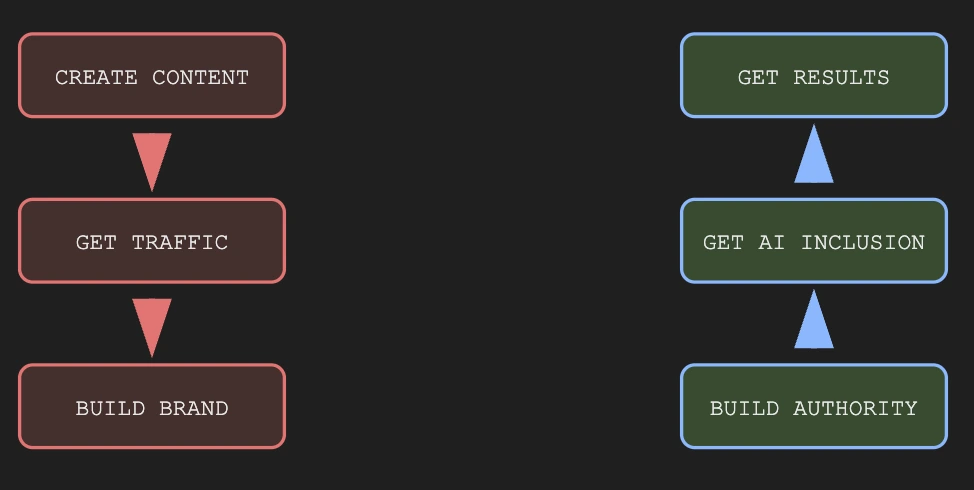
In my practical testing over the last few months I have observed a huge change in how Google picks sources. You have to practice Generative Engine Optimization if you want your website to show up inside those AI answer boxes. Regular SEO is no longer enough to win those top spots.
AI models crave structured data. They ignore massive walls of text. If you want to rank in AI search you must use clean tables and direct question formatting.
You also need to build strong brand mentions on third party review sites. Google cross references your claims against what other people say about you before it decides to feature your tool in an AI overview.
FAQs
How do I turn on Google AI Mode?
You activate it by visiting the Search Labs website and toggling the AI Overviews switch to the on position. It takes effect across your account immediately.
Can I completely disable Google AI Mode?
Yes you can turn it off entirely in your Search Labs settings. You can also use the Web filter on the search results page to temporarily hide it.
Why is Google AI answering my searches?
The system activates when it thinks a search query is too complex for a single website link to answer properly. It attempts to save you time by synthesizing multiple sources.
Is Google AI Mode free to use?
Yes the basic search feature is completely free for anyone with a standard Google account. You do not need a paid subscription to see these answers.
Does Google AI Mode show up on mobile?
Yes it works on the Google App for iOS and Android as well as the mobile Chrome browser. The interface looks nearly identical to the desktop version.
Why don’t I see AI Overviews on my Google search?
You might be in a region where the feature is not fully supported yet. You might also have the feature turned off in your Search Labs account settings.
Take Control of Your Search Experience
Google AI Mode represents the biggest shift in internet browsing since the smartphone. You are no longer just hunting for links. You are interacting directly with a highly capable answer engine.
I have observed that users who actually customize these Search Labs settings get significantly more work done. You do not have to settle for the default layout. Turn the AI overviews on for deep research days, and use the Web filter when you just need a quick website link.
The tools we use define how fast we grow. Explore the rest of the GuideAITools directory to find exactly what you need to upgrade your daily workflow.

Related Blog Posts