10 Best AI Documents Assistant Tools for 2026 (Compared)
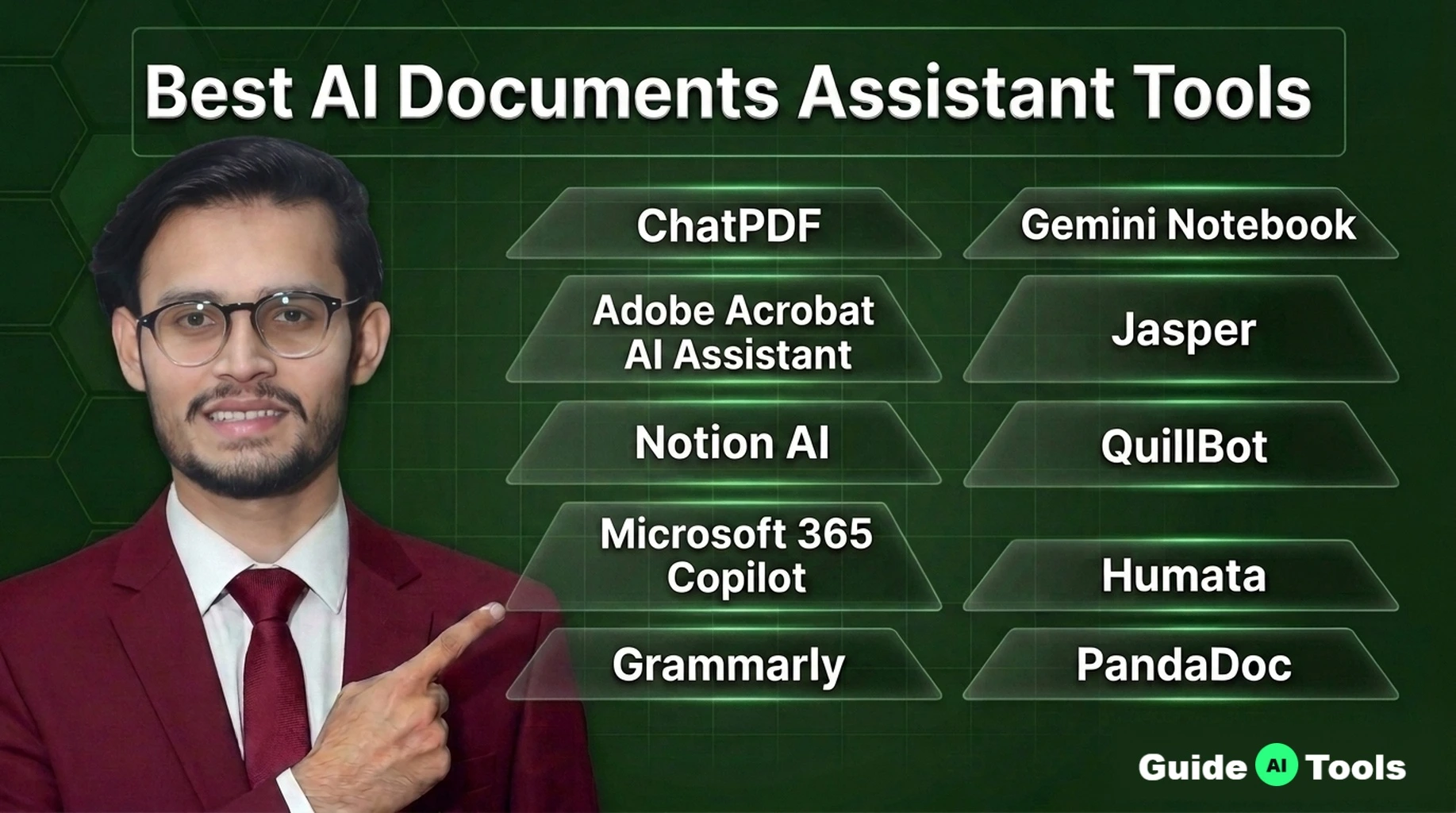
The best AI documents assistant tools for 2026 are ChatPDF for free PDF chat, Adobe Acrobat AI Assistant for professionals, and Gemini Notebook for research grounded in your own sources. If you draft inside a workspace, Notion AI or Microsoft 365 Copilot fit better. For proposals with signatures, PandaDoc wins. The right pick depends on your files, not the hype.
A 40-page contract lands in your inbox at 4 PM. You need the key terms by 5.
That is the exact moment these tools are built for. Documents eat hours every week: drafting, reformatting, summarizing long PDFs, comparing versions, chasing signatures. An AI documents assistant attacks each of those hours directly. Some work as an AI document generator, others as a reader that answers questions about your files.
Below you get 10 tools compared side by side, with pricing verified from official pricing pages, honest free-tier limits, a privacy checklist, and a picker that matches each tool to your document type. Straight from the GuideAITools team. No fluff. Just the fit.
What Is an AI Documents Assistant?
An AI documents assistant is software that works directly with your files to draft, summarize, answer questions, and organize them.
A plain AI writer polishes sentences you paste in. A documents assistant opens the file itself. It reads PDFs, Word docs, and scanned images, then hands you summaries with citations, pulls out key clauses, compares two versions, or drafts from a template.
The core jobs are simple to list. Summarize long files in seconds. Answer questions about a document with page references. Draft contracts or reports from a prompt. Extract tables and totals. Translate, transcribe, and track versions.
It handles the formats you already use: PDF, DOCX, XLSX, PPTX, scanned images, even handwritten notes with OCR on some tools.
New to the underlying tech? Read what artificial intelligence actually is first, then come back here. The rest of this guide stays practical.
How We Chose These Tools
Every pick below earned its place among the best AI document assistant tools by covering real document tasks, not demo tricks.
We screened for six things. Real tasks: drafting, summarization, Q and A over files, comparison, extraction, or signing. File-format support beyond plain text. A free tier or trial so you can try before paying. Clear pricing on the official site. Privacy controls for business files. And active development, because abandoned tools help no one.
Pure chatbots with no file handling did not make the cut. They are fine assistants, but they are not documents assistants. Dead or unmaintained tools were skipped too.
One rule shaped everything: no invented numbers. Every price below is verified from official pricing pages, and every limit is stated as the vendor states it. Where a vendor hides the price, we say so instead of guessing.
Best AI Documents Assistant Tools at a Glance
Ten tools, one table. Find your use case, then read the full review below.
| Tool | Best For | Key Strength | Free Tier | Starting Price |
|---|---|---|---|---|
| ChatPDF | Free PDF chat | Cited answers linked to source pages | Yes, 2 PDFs a day | $0 |
| Adobe Acrobat AI Assistant | PDF professionals | Summaries with attributions inside Acrobat | No | $1.99 a month |
| Notion AI | Notion teams | Drafts and answers inside your workspace | Limited trial | $20/member/mo (Business) |
| Microsoft 365 Copilot | Office users | Drafts and rewrites in Word, Excel, PowerPoint | Copilot Chat for eligible users | $30 a user a month |
| Grammarly | Polishing documents | Tone rewrites, plagiarism and AI-text checks | Yes, 100 AI prompts a month | $0 |
| Gemini Notebook | Source-grounded research | Citations on every answer, audio overviews | Yes, generous limits | $0 |
| Jasper | Marketing drafts | Brand voice controls, Canvas editor | Trial only | $59 a seat a month |
| QuillBot | Paraphrasing | 9 paraphrase modes, citation generator | Yes, 100 words | $0 |
| Humata | Technical PDFs | Page-level citations, OCR on Team plan | Yes, 60 pages a month | $0 |
| PandaDoc | Proposals and signing | Templates, e-signature, analytics | Free eSign plan | $0 |
Prices verified from official pricing pages. Full details follow in the reviews.
The 10 Best AI Documents Assistant Tools, Reviewed
1. ChatPDF
Best for: free PDF chat with answers linked to the source page.
ChatPDF created the chat-with-your-PDF pattern. Upload a file, ask in plain language, and get answers with clickable citations that jump to the exact page. No account needed to start.
- Cited answers linked to source text
- Side-by-side chat next to the document
- Multi-file chats across folders
- Works in any language
Formats: PDF, Word, PowerPoint, Markdown, TXT.
Pricing: free at $0, with 2 PDFs a day, 120 pages and 10 MB per file, about 50 questions daily. Plus removes the caps. Pricing details are on the official site. Verified from official pricing pages.
Pros: no signup needed. Citations keep answers checkable. Fast on short documents.
Cons: daily caps bite on heavy days. Plus value is hard to judge without public pricing. No confirmed OCR for scans.
2. Adobe Acrobat AI Assistant
Best for: professionals who already live inside PDFs.
AI built into the PDF reader your office already uses. Ask questions and get answers with attributions. Summarize with one click. PDF Spaces combine up to 100 files for cross-document insight.
- One-click generative summaries
- Answers cited back to the source
- PDF Spaces across up to 100 files
- Meeting transcript summaries
Formats: PDF first, its native home.
Pricing: $1.99 per month as an add-on, or $19.99 per year prepaid. Attaches to free Reader or paid Acrobat. No free AI tier. Verified from official pricing pages.
Pros: lives where your PDFs are. Content never trains Adobe’s AI models. Attributions keep answers honest.
Cons: paid add-on, no free AI tier. Tied to Adobe. Per-user cost stacks on teams.
3. Notion AI
Best for: teams whose documents live in Notion.
Drafts, summarizes, and answers questions inside the workspace. Searches across Notion, Slack, and Google Drive. Turns meetings into notes automatically.
- AI writing blocks that draft in place
- Enterprise Search across connected apps
- AI Meeting Notes with summaries
- Research Mode for longer reports
Formats: Notion pages, docs, connected workspace content.
Pricing: plans run Free $0, Plus $10 per member per month, Business $20 per member per month on yearly billing, Enterprise custom. Notion AI is included in Business and Enterprise, with a trial on Free and Plus. Verified from official pricing pages.
Pros: zero context switching. Search spans apps. Data never trains models, contractually.
Cons: full AI needs Business or higher. Trial runs out fast. Weak if files live elsewhere.
4. Microsoft 365 Copilot
Best for: Word, Excel, and Outlook power users.
Drafts and rewrites in Word, builds formulas in Excel, turns prompts into PowerPoint decks, recaps meetings in Teams. Chats across files, emails, and meetings with enterprise data protection.
- Drafting and rewriting in Word
- Spreadsheet analysis in Excel
- Meeting recaps with action items
- Custom agents via Copilot Studio
Formats: Word, Excel, PowerPoint, OneNote, Outlook.
Pricing: $30 per user per month paid yearly, on top of an eligible M365 subscription. Business version $18 for up to 300 users. Copilot Chat free for eligible Entra users. Verified from official pricing pages.
Pros: inside apps people already open. Enterprise-grade data protection. Deepest Office integration here.
Cons: priciest option. Needs base M365 first. Yearly commitment only.
5. Grammarly
Best for: polishing documents until they read clean.
Fixes grammar, rewrites full sentences, adjusts tone, checks plagiarism and AI-generated text. Works in Word, Google Docs, and the browser. A true AI writing assistant for documents.
- Full-sentence rewrites and tone shifts
- Plagiarism and AI-text detection
- Citation consistency suggestions
- Style guides for teams
Formats: text-level in Word, Google Docs, browser. Not a file parser.
Pricing: free at $0 with 100 AI prompts a month. Pro $12 a month with 2,000 prompts. Enterprise custom. Verified from official pricing pages.
Pros: generous free tier. Plagiarism checker for academics. Works everywhere you type.
Cons: polishes words, does not read files. 100 free prompts run out fast. Best features need Pro.
6. Gemini Notebook
Best for: research grounded strictly in your own sources.
Formerly NotebookLM. Answers using only your uploaded documents, with citations on every claim. Turns sources into audio overviews, mind maps, and study guides.
- Source-grounded answers with citations
- Audio and video overviews
- Study guides and flashcards
- Slide decks exported as PDF
Formats: Google Docs, Slides, PDFs, web URLs, YouTube, audio.
Pricing: free at $0: 100 notebooks, 50 sources each, 50 chats a day, 3 audio overviews a day. Paid plans with higher limits start with Google AI Plus at $44.99 for the first year. Verified from official pricing pages.
Pros: most generous free tier here. Citations on everything. Great for students.
Cons: answers stay inside your sources. Paid-tier prices not published in text. Daily caps on overviews.
7. Jasper
Best for: long-form marketing drafts with consistent brand voice.
Canvas editor handles long documents with AI help. Brand voice controls keep every draft on-message. Built for campaign and content volume.
- Canvas long-form editor
- Brand Voice and knowledge assets
- One-click rephrase, 30 plus languages
- Purpose-built marketing agents
Formats: text and documents in the Jasper editor.
Pricing: Pro $59 per seat per month billed annually ($69 monthly). Business custom. Trial only, no free tier. Verified from official pricing pages.
Pros: brand voice control for teams. Long-form beats chat boxes. Built for volume, not casual use.
Cons: no free tier. Per-seat cost climbs fast. Overkill for simple summaries.
8. QuillBot
Best for: paraphrasing and summarizing for students.
Rewrites sentences in 9 tone modes, condenses articles, generates citations in thousands of styles. A daily driver for researchers.
- Paraphraser with 9 modes
- Article summarizer
- Plagiarism checker on Premium
- Citation generator
Formats: text input in the editor.
Pricing: free at $0, up to 100 words and 2 modes. Premium $17.95 monthly, $11.32 quarterly, $6.25 monthly billed annually. Verified from official pricing pages.
Pros: free, no credit card. Citation generator saves time. Cheapest annual plan here.
Cons: 100-word free cap is tight. Pasted text only, not files. Limits hit fast.
9. Humata
Best for: Q and A over long, technical PDFs.
Answers with page-level citations. Team plan adds OCR for scanned files. Page-based pricing means heavy months cost more only when used.
- Grounded answers with page citations
- OCR for scans on Team
- Folders with permissions
- Pay per extra page
Formats: PDFs, including scanned with OCR on Team and up.
Pricing: free at $0 with 60 pages a month. Expert $9.99 with 500 pages. Team $49 per user with 5,000 pages. Enterprise custom. Verified from official pricing pages.
Pros: fair page-based pricing. Exact-page citations for technical review. OCR covers scans.
Cons: 60 free pages is a light trial. Overages add up. Smaller vendor.
10. PandaDoc
Best for: proposals and contracts that need signatures.
Draft-to-signature in one flow: drag-and-drop editor, 1,000 plus templates, approval workflows, unlimited e-signatures with audit trail, open analytics.
- 1,000 plus templates
- Legally binding e-signatures
- Approval workflows
- CRM integrations
Formats: PDF and DOCX in the editor.
Pricing: free eSign at $0. Essentials $19 per user billed annually ($35 monthly). Business $49 annually ($65 monthly). Enterprise custom. Verified from official pricing pages.
Pros: drafting and signing together. Free eSign is genuinely useful. Engagement analytics.
Cons: full features need paid plans. Redlining on Enterprise only. Per-user cost climbs.
AI Writer vs AI Documents Assistant: What Is the Difference?
An AI writer improves your words. An AI documents assistant works with your files.
That is the whole distinction. A writer polishes sentences, fixes tone, and drafts paragraphs. A documents assistant opens PDFs, summarizes 50 pages, compares two contract versions, extracts invoice totals, and tracks redlines. Different jobs, different tools. Both run on the same generative AI models under the hood, which is why people confuse them.
Picking wrong costs money. Run a contract through a grammar checker and you get cleaner sentences around a clause that still hurts you. Ask a summarizer to redline and you get a neat paragraph that misses the changed payment term.
| Task | Use This Type |
|---|---|
| Summarize a 50-page PDF | Documents assistant |
| Fix grammar in a draft | AI writer |
| Compare two contract versions | Documents assistant |
| Draft a proposal from notes | Either, then an e-signature tool |
| Pull totals from 200 invoices | Documents assistant |
If your work starts with a file, you need the assistant. If it starts with a blank page, the writer may be enough. Many teams end up with both, and that is fine.
Which Tool Fits Your Document Type?
Start from your file, not the feature list.
| If You Need | Look For | Why |
|---|---|---|
| Contract review | Clause extraction plus citations | You need risky terms found, not just summarized |
| Long PDF summaries | Cited Q and A with high page limits | Checkable answers beat fluent ones |
| Proposals and reports | Templates plus e-signature | Drafting and signing in one flow |
| Meeting notes | Transcription plus action items | Audio to text to tasks, no retyping |
| SOPs and internal docs | Workspace search with permissions | Answers from your own docs, access-controlled |
| Academic papers | Citation tracking plus paraphrasing | Sources you can actually cite |
| Invoices and forms | OCR plus table extraction | Scanned files need OCR before anything else |
File formats, honestly mapped. Cells marked not confirmed mean the vendor page did not state it clearly, verified from official pricing pages and feature pages.
| Tool | Office Formats | Scanned and OCR | |
|---|---|---|---|
| ChatPDF | Yes | Word, PowerPoint | Not confirmed |
| Adobe Acrobat AI Assistant | Yes | PDF-first | Yes, with OCR |
| Notion AI | Through import | Notion pages | Not confirmed |
| Microsoft 365 Copilot | Yes | Word, Excel, PowerPoint | Not confirmed |
| Grammarly | No, text-level | Word, Google Docs | No |
| Gemini Notebook | Yes | Docs, Slides | Not confirmed |
| Jasper | No, editor text | Editor only | No |
| QuillBot | No, pasted text | Editor only | No |
| Humata | Yes | PDF-focused | Yes, on Team plan |
| PandaDoc | Yes | DOCX | Not confirmed |
If scanned paperwork is your daily reality, shortlist Humata and Adobe first. Everyone else, match the row to your file type. GuideAITools keeps the full AI documents assistant category updated as new tools launch, so check back before you commit.
Pricing Compared: What You Actually Pay
How much does an AI document assistant cost? Anywhere from $0 to about $295 a month for a small team, depending on how deep the features go. Free AI document tools finish real work at the light end. Professional workflows sit in the middle. Enterprise add-ons cost the most.
What is the best free AI document tool? For most people it is ChatPDF or Gemini Notebook. ChatPDF needs no account and answers with citations. Gemini Notebook gives you 100 notebooks and 50 sources each for nothing. Both handle real documents, not just demos.
| Tool | Free Tier, Honestly | Starting Paid Price | Who Pays More |
|---|---|---|---|
| ChatPDF | 2 PDFs a day, about 50 questions | Plus pricing on official site | Heavy daily users |
| Adobe Acrobat AI Assistant | No free AI tier | $1.99 a month add-on | Teams adding Acrobat Pro |
| Notion AI | Limited trial | $20/member/mo (Business) | Larger workspaces |
| Microsoft 365 Copilot | Copilot Chat for eligible users | $30 a user a month | Enterprises, plus base M365 |
| Grammarly | 100 AI prompts a month | Pro $12 a month | Teams needing 2,000 prompts |
| Gemini Notebook | 100 notebooks, 50 sources each | Google AI Plus $44.99 first year | Power researchers |
| Jasper | Trial only | Pro $59 a seat a month, annual | Marketing teams |
| QuillBot | 100 words per paraphrase | Premium $6.25 a month, annual | Students, researchers |
| Humata | 60 pages a month | Expert $9.99 a month | Teams with page overages |
| PandaDoc | Free eSign plan | Essentials $19 a user a month, annual | Sales teams |
All prices verified from official pricing pages.
The 5-person team test, the math our competitors skip:
| Tool | 5 People, Monthly Estimate | Note |
|---|---|---|
| ChatPDF | $0 | Free tier, Plus pricing on official site |
| Adobe Acrobat AI Assistant | $9.95 | 5 x $1.99 add-on |
| Notion AI | $100 | 5 x $20 Business, yearly billing |
| Microsoft 365 Copilot | $150 ($90 on Business) | Plus base M365 subscription |
| Grammarly Pro | $60 | Annual billing |
| Gemini Notebook | $0 | Free tier covers most teams |
| Jasper Pro | $295 | Annual billing, $345 if monthly |
| QuillBot Premium | $31.25 | Annual billing |
| Humata | $9.99 to $245 | Expert covers 3 users, Team is per user |
| PandaDoc Essentials | $95 | Annual billing, $175 if monthly |
Watch the fine print. Per-user pricing punishes growing teams. Page and credit caps turn cheap plans expensive. And never trust the word unlimited unless the pricing page defines it.
Privacy and Security: Read This Before You Upload
How do AI document assistants handle my data? It depends on the vendor, and you should check before uploading anything sensitive.
Run through this checklist for any tool that touches business files. How long is my data retained? Can I opt out of training? Is my data encrypted in transit and at rest? Is SSO available? Does the vendor hold SOC 2, GDPR, or HIPAA compliance? Where does my data physically live?
Two vendors publish clear answers. Adobe states your document content is never used to train its AI models. Notion’s Enterprise plan offers zero data retention with its AI providers. For the rest, read the privacy page before you upload. Do not put client files, contracts, or employee records into a tool whose retention policy you have not read.
Then verify what the AI tells you. Check citations against the source pages. Spot-check every name, date, and number before it leaves your desk. Redline contracts yourself instead of trusting a summary. Never send AI output to a client or a court without human review. The NIST AI Risk Management Framework is the best free reference for building this habit into a team workflow.
Honestly, most people get this wrong. They treat the summary as the document. The summary is a map. The document is the territory. Read the territory before you sign anything.
Mistakes to Avoid With AI Document Tools
- Treat AI output as final without reading the source yourself.
- Use a summarizer when the job needed a redline comparison.
- Upload confidential files without reading the privacy terms.
- Let the AI invent names, dates, or figures you never provided.
- Ignore export formats until the client asks for a Word file.
- Pay for a year upfront before the free tier proves the fit.
FAQs
Which AI tool is best for summarizing long PDFs?
ChatPDF and Gemini Notebook lead for free users. ChatPDF answers with citations linked to the exact page, and Gemini Notebook grounds every answer in your uploaded sources. Adobe Acrobat AI Assistant is the pick if you already pay for Acrobat.
Can AI review a contract?
For a first pass, yes. Tools like Humata extract clauses and flag terms worth a closer look, and Adobe summarizes with attributions. But AI misses nuance and occasionally invents language. Treat it as a junior analyst, not a lawyer. A licensed attorney should review anything you sign.
Can AI compare two versions of a document?
Yes, and this is where documents assistants earn their keep. PandaDoc offers redlining and versioning on its Enterprise plan, Adobe compares PDFs, and Copilot works with Word’s compare features. Always eyeball the redline yourself. AI summaries of changes have missed altered payment terms before.
Which AI has the largest context window for documents?
Context windows keep changing, so confirm on the official pages before you commit. In this lineup, Gemini Notebook accepts up to 50 sources per notebook on its free tier, the most generous allowance we verified. ChatPDF handles up to 120 pages per file free. For single giant files, check each vendor’s current file-size limit.
Are AI document tools safe for confidential files?
They can be, with the right vendor and settings. Look for zero data retention options, training opt-outs, SSO, and SOC 2 or HIPAA compliance. Adobe and Notion publish the clearest commitments here. When in doubt, redact names and figures before uploading, or keep the file offline entirely.
Do I need a paid plan, or is free enough?
Free is enough for light, personal use. ChatPDF’s 2 PDFs a day, Gemini Notebook’s 100 notebooks, and Grammarly’s 100 monthly prompts cover real work for individuals. You need paid when the caps hit every week, when a team shares the tool, or when you need OCR, admin controls, or compliance features.
Can these tools handle scanned documents?
Some can. Humata offers OCR on its Team plan, and Acrobat has long handled scanned PDFs. Most others work best with digital text. If your archive is paper scans, shortlist the OCR-capable tools first and test one messy file before paying.
Final Verdict
Start with the free tier that matches your files. ChatPDF for quick PDF questions, Gemini Notebook for research, Grammarly for polish. When work gets serious, Adobe suits PDF professionals, Copilot suits Office companies, and PandaDoc closes the loop on proposals.
Browse the full AI documents assistant category on GuideAITools to compare these against thousands of AI tools, and check the related toolkit guides before you commit to a paid plan.

Related Blog Posts